
Disputes - Corporate

Hi there! Welcome to Dex, Forte's latest and greatest payments application. With Dex, you can view, create, and manage all your transaction data—including customers, payment methods, addresses, and schedules—in one convenient place. You can also view and maintain your merchant account, keep track of your funding entries, resolve disputed transactions, and generate API credentials to connect Dex with your third-party applications.

Credit Card Disputes

Understanding Disputes

Understanding Credit Card Chargebacks

A chargeback is the reversal of a credit card payment initiated by a cardholder's bank. Chargebacks occur when a customer calls his or her credit card issuer and disputes a charge. Under the Fair Credit Billing Act, consumers have up to 2 years to dispute a credit card charge for one of the following four reasons:

  • Unauthorized purchases arising from fraud
  • Authorization and Billing errors
  • Processing errors
  • Quality issues with a good or service, also known as "Friendly Fraud"

After receiving a dispute from the consumer, the card issuer initiates a chargeback transaction, which removes the disputed funds from the merchant's bank and credits them back to the consumer. Obviously, Chargebacks can be expensive for merchants—besides the cost of the good or service, the merchant must also pay a non-refundable, administrative chargeback fee to their acquiring bank even if they win the dispute. Additionally, too many chargebacks can make a merchant "high risk" for processors and banks, which could result in the termination of the merchant account or substantially increase the merchant's business expenses.

Dex's automated Dispute module streamlines the process of responding to disputes by removing or reducing the number of manual tasks required of the Forte Risk Team and providing merchants with clear actionable tasks to win their disputes.

Merchant Requirements for Dispute Management

Currently Forte only supports automated disputes for merchants meeting the following requirements:

  • Vantiv merchants that process credit card transactions using a Forte-owned Chain credential.
  • Merchants that process VISA, MasterCard, and/or Discover credit cards
  • Merchants that process American Express credit cards under a PayFac (manual disputes)
  • Merchants with a scanner or online fax service that can create digital versions of dispute documentation in one of the following formats OR a method of converting image files from one of the following formats to binary content (for API integrations):
    • .bmp
    • .jpeg/.jpg
    • .png
    • .tiff
    • .txt
    • .pdf

Dex Disputes

Dex supports the following types of disputed amounts:

  • Full-amount disputes (i.e., the disputed amount is the same as the authorized amount of the original transaction) for VISA, MasterCard, Discover, or American Express where the original transaction occurred on or after September 2, 2017
  • Partial-amount disputes (i.e., the disputed amount is less than the authorized amount of the original transaction) for VISA, MasterCard, or Discover where the original transaction occurred on or after February 5, 2019

Dex captures VISA, MasterCard, and Discover disputes by consuming the Vantiv Chargeback Retrieval Tracking System (CHARTS) Chain Activity File, which contains all new and updated disputes reported to them by card issuers. Vantiv creates this file at the end of each day, 7 days a week and transmits it to Forte via FTP at 5AM every morning. Existing disputes are updated and new dispute records are created and placed into the Documents Needed status. For American Express disputes, Risk logs into the American Express Portal each day to pull new or updated dispute files and then manually enters them into Dex (see Creating a Dispute). Dex automatically emails the merchant information about the dispute once it's created. If no action is taken on a dispute with a Documents Needed status, Dex will send reminder emails to users that have subscribed to the Documents Needed notification after 5 days and 9 days.

The merchant has 10 days from that notification date to respond by either accepting the dispute or submitting documentation supporting a case that the transaction was properly authorized and that the merchant made a good-faith effort to validate identity and authenticate the card (i.e., performing AVS and CVV checks). This 10-day time frame is firm; however, if the dispute's Record Type changes (i.e., an Inquiry becomes a Chargeback), the due date resets to 10 days after the update.

Once Forte receives the dispute documentation, we review it to ensure it's readable, accurate, and complete and then send it back to the card issuer (via Vantiv) to render a decision. If the card issuer agrees with the cardholder, Dex puts the dispute into Lost status, debits the disputed amount from the merchant, and then adds the Credit Card Processing - Chargeback (CCPChgBk) fee to the merchant's monthly invoice.

If, however, the card issuer agrees with the merchant, Dex puts the dispute into Won status, credits the disputed amount back to the merchant, and then adds the Credit Card Processing - Chargeback (CCPChgBk) fee to the merchant's monthly invoice.

NOTE: Won and Lost dispute statuses are not necessarily the final status. The cardholder has the option to continue to dispute the payment amount by filing for arbitration, which results in a second chargeback. Second chargebacks are more expensive to fight and rely on the card networks (Visa, MasterCard, American Express, or Discover) rather than the card issuers to render the final decision. This final decision must be accepted by all parties and results in the final funding adjustment.

The following diagram provides a simplified example of this process assuming only one funding adjustment (the chargeback amount that was taken from the merchant). Remember though, the entire dispute process can take up to 90 days to resolve, could require multiple document submissions, and could involve multiple funding adjustments before the final resolution (e.g., if the dispute goes from Inquiry to Chargeback to Second Chargeback).

Dispute Statuses in Dex

Dex uses the following statuses to indicate the dispute's currently location in the dispute lifecycle:

  • Accepted - The merchant accepts liability for the dispute, forfeiting his or her right to continue building a case against the cardholder. Once accepted, Dex returns the disputed amount to the cardholder and adds the Credit Card Processing - Chargeback (CCPChgBk) fee to the merchant's monthly invoice. NOTE: Disputes with the Record Type = Inquiry cannot be accepted.
  • Documents Needed - The merchant needs to provide sufficient supporting evidence for his/her side of the dispute. Disputes return to this status when the card issuer updates the Record Type (i.e., changes an Inquiry to a Chargeback) or if Forte reviews the submitted evidence and determines that it is insufficient for the reason code.
  • Exception - The processor submitted the dispute, but the reason code was unfamiliar to Dex. Each day the Forte Risk Team monitors for disputes in this status and then submits a trouble ticket to the Forte Operations Team to add the reason code to the Dex database. Once the Operations Team adds that reason code, the Risk Team manually resets the dispute's status to Documents Needed, which initiates a dispute notification email to the merchant. Only Corporate users can view disputes in the Exception status.
  • Expired - The processor submitted the dispute as an Inquiry, but the merchant never responded to the request by submitting his or her evidence within 60 days.
  • Fulfilled - The processor submitted the dispute as an Inquiry, the merchant submitted his or her evidence, and the card issuer did not change the inquiry to a chargeback within 31 days of the initial request.
  • Lost - The card issuer decided the dispute in favor of the cardholder or the last funding adjustment was a debit and 61 days have passed after the last funding date. A debit funding adjustment applied to disputes in the Won status can also change a dispute to Lost.
  • Pending - Forte submitted the merchant's evidence to the card issuer and is awaiting a final verdict.
  • Recalled - The processor submitted a full amount dispute for a transaction that occurred prior to 2/4/2019 and then updated the disputed amount to a partial amount. This status can also occur if Forte did not perform the funding on the original transaction (and thus cannot adjust funding for a chargeback). For these types of disputes, the Forte Risk Team must manually adjust funding and the status once the dispute is Won or Lost.
  • Reviewing - The merchant has submitted his or her evidence and the Forte Risk Team is reviewing them.
  • Won - The card issuer decided the dispute in favor of the merchant, a credit funding adjustment was applied to a dispute in Lost status, or the last funding adjustment was a credit and 61 days have passed after the last funding date.

Understanding the CHARTS File

Forte derives the following data from Vantiv's Chargeback Retrieval Tracking System (CHARTS) Chain Activity File:

  • Dispute Number - The unique, Vantiv-defined number that identifies the dispute. Use this number to search for disputes in Dex.
  • Record Type - The type of dispute the card issuer has submitted: Inquiry, Chargeback, or Second Chargeback. Each record type has its own financial consequences for the merchant. See the Record Types section below for more information.
  • Reason Code - A code that indicates the reason for the dispute. These codes vary between card networks and can include multiple transaction modifiers that identify the precise circumstances that led to the chargeback (e.g., a card-not-present transaction for a airline). Dex has a comprehensive list of dispute reason codes for each card network as well as descriptions of what evidence merchants must provide to prove the transaction was properly authorized and processed (i.e., Items Needed).
  • Action Code - A code that indicates precisely where this dispute is in the dispute resolution process between the card issuer and the processor. Dex uses the Action Code and the Adjustment Type code to make funding adjustments and Record Type updates.
  • Adjustment Type - A code indicating the type of funding adjustment made for the provided action code. Inquiries do not initiate funding adjustments.
  • Received Date - The date Vantiv originally received the dispute from the card issuer.
  • Amount - The transaction amount the cardholder is disputing. This can be the for the full authorization amount or the original transaction or for less than the authorization amount. NOTE: For SplitFund merchants, full-amount disputes are only allowed on the authorization amount of the original transaction less the service fee. Notify Accounting if the disputed amount is greater than the subtotal amount but less than the subtotal+service fee amount.

Record Types

Dex uses specific combinations of fields from the CHARTS file to determine a dispute's Record Type. Each Record Type has its own financial consequences for merchants. Remember, with chargebacks, a debit funding adjustment is when money is taken from the merchant and given back to the cardholder while a credit funding adjustment is when money is taken from the cardholder and given back to the merchant.

CHARTS Field

Description

Action Code

A code that denotes the dispute's place in the dispute lifecycle between the card issuer, the processor, and the merchant. These codes are defined by Vantiv and we use them with the Adjustment Type codes to determine the dispute's Record Types and initiate all funding adjustments. Only the CHGM (Charge Merchant) and CRMR (Credit Merchant) action codes have a financial impact. For a comprehensive list of action codes, see the Disputes FAQ.

Adjustment Type
 

Adjustment types indicate the type of funding adjustment that's about to happen or has happened within the dispute lifecycle. Only the CHBK adjustment type results in a funding adjustment (credit or debit) depending on the provided Action Code. Forte assesses the chargeback fee for DRFT and CHBK action codes. For reference, the Adjustment Type field may also have the following values:

ARBT - Arbitration (Second Chargeback)
CHBK - Chargeback (Chargeback)
COMP - Compliance (Inquiry)
DRFT - Credit Card Draft Retrieval (Inquiry)
FEE - Incoming Chargeback Debit (for Inquiries and Chargebacks)
PARB - Incoming Pre-Arbitration (Second Chargeback)
PNOT - Pre-Compliance Pre-Notification (Inquiry or Second Chargeback)

Transaction Type
 

The type of transaction initiated by the issuer. Supported values include the following:

40 - Credit card draft retrieval (Inquiry)
41 - Credit card chargeback of purchase
42 - Credit card chargeback of refund or a network reversal of a chargeback

Usage Code

The chargeback presentation number as specified by the issuer (1st, 2nd, 3rd, etc.).

Inquiries

Inquiries, or retrieval requests, or ticket retrieval requests (they're all the same) are requests the card issuer makes to see if a cardholder's claim has merit to warrant a chargeback. For merchants, inquiries do not remove transaction funding and enable them to preemptively address a dispute before it becomes a costly chargeback. If possible, merchants should respond to all inquiry requests to prevent negative funding adjustments and multiple chargeback fees. NOTE: Forte charges merchants the Credit Card Processing - Chargeback fee (CCPChgBk) for inquiries. If an inquiry is updated to a chargeback (i.e., Inquiry to Chargeback), Forte assess this fee twice. The following field combinations create an Inquiry dispute in Dex:

Card Network

Action Code

Adjustment Type

Transaction Type

Usage Code

Funding Action

Description

VISA

RREQ

DRFT

40

1

--

Dex creates an inquiry.

RRSP

DRFT

40

1

--

Merchant submitted evidence to the card issuer and the dispute remains an inquiry.

MasterCard

N/A

PNOT

41

1

--

Dex creates an inquiry.

Discover

N/A

DRFT

40

1

--

Dex creates an inquiry.

Chargebacks

Chargebacks are the forced reversal of a transaction, which a cardholder or card issuer initiates. The cardholder's bank takes the transaction amount from the merchant immediately and Forte adds the chargeback to the merchant's invoice to assess the fee. Typically allowed response time for disputes is 10 days; however, if a dispute goes from an Inquiry to Chargeback the merchant has less time to work them. Inquiry to Chargeback disputes are marked with priority icons on the Disputes Datagrid and need to be worked first. The following field combinations create a Chargeback dispute in Dex:

Card Network

Action Code

Adjustment Type

Transaction Type

Usage Code

Funding Action

Description

VISA

CHGM

CHBK

41

9

Debit

Dex creates a chargeback and issues a debit back to the cardholder.

IREP

CHBK

41

9

--

The card issuer has received supporting evidence from the merchant.

CRMR

CHBK

42

9

Credit

The card issuer has sided with the merchant and reversed the chargeback or second chargeback.

CRMR

CHBK

42

9

Debit

Dex creates a chargeback and issues a debit back to the cardholder.

MasterCard

CHGM

CHBK

41

1

Debit

Dex creates a chargeback and issues a debit back to the cardholder.

CHGM

CHBK

42

1

Credit

The card issuer has sided with the merchant and reversed the chargeback.

OREV

PNOT

41

1

--

The card issuer has received supporting evidence from the merchant.

CBRV

CHBK

41

1

Credit

The card issuer has sided with the merchant and reversed the chargeback.

Discover

CHGM

CHBK

41

--

Debit

Dex creates a chargeback and issues a debit back to the cardholder.

MREV

PNOT

41

--

--

The card issuer has received supporting evidence from the merchant.

CBRV

CHBK

42

--

Credit

The card issuer has sided with the merchant and reversed the chargeback or second chargeback.

Second Chargebacks

Second Chargeback occur when the merchant won the first chargeback, but the cardholder does not agree with the decision and files for arbitration via the card network. If that sounds expensive, it's because it is—the fee for second chargebacks is a minimum $500. Second chargebacks follow the same dispute lifecycle as inquiries and chargebacks except this time the card network (instead of the card issuer) reviews the evidence submitted from both parties and makes the final decision. Like the Inquiry to Chargeback record type, the Chargeback to Second Chargeback record types are marked with priority icons on the Disputes Datagrid and should be worked first as they're on the clock. The following field combinations create a Chargeback dispute in Dex:

 Card Network

Action Code

Adjustment Type

Transaction Type

Usage Code

Funding Action

Description

VISA

IPAB

PARB

41

9

--

The cardholder has opted for arbitration and a second debit is about to be issued.

CHGM

PARB

41

9

Debit

Dex issues a second debit back to the cardholder.

MasterCard

N/A

PNOT

41

3

--

The cardholder has opted for arbitration and a second debit is about to be issued.

CHGM

CHB2

41

3

Debit

The cardholder has opted for arbitration and a second debit is about to be issued.

CHGM

CHB2

41

9

Debit

The cardholder has opted for arbitration and a second debit is about to be issued.

CHGM

REPR

41

9

Debit

The cardholder has opted for arbitration and a second debit is about to be issued.

CRMR

CHB2

41

9

Credit

The cardholder has opted for arbitration and a second debit is about to be issued.

MACP

CHB2

41

9

--

IREP

REPR

41

9

--

MACP

REPR

41

9

--

Discover

N/A

PNOT

41

--

--

The cardholder has opted for arbitration and a second debit is about to be issued.

PADM

CHBK

41

--

Debit

Dex issues a second debit back to the cardholder.

Understanding Dispute Funding

A dispute can have multiple funding adjustments during its lifecycle. How quickly merchants see those adjustments on their ledgers depend on their funding mode. A merchant's Funding Mode is set at the merchant organization level and is inherited from its partner. A merchant organization can be set up in one of three funding modes:

  • Immediate - As soon as the CHARTS file presents a funding condition for that dispute, Dex automatically processes the debit or credit adjustments. Immediate is the default Funding Mode for merchants.
  • Deferred - Dex waits 61 days from the last funding condition (i.e., dispute resolution) to process debit or credit adjustments. This Funding Mode is typically reserved for government merchants.
  • No Adjustments - No funding adjustments will be performed on these disputes regardless of funding condition. This Funding Mode is typically reserved for Forte Service Fee merchant organizations.

CHARTS File Funding Conditions

Like a dispute's Record Type, funding conditions are calculated using specific combinations of the Adjustment Type, Action Code, and Transaction Type fields in the CHARTS file. The following table displays what combinations initiate debit funding adjustments (i.e., money is taken from the merchant and returned to the cardholder).

Action Code

Adjustment Type

Transaction Type

CHGM

ARBT

41

CHGM

CHBK

41

CHGM

COMP

41

CHGM

PARB

41

CRMR

ARBT

41

CRMR

COMP

42

CRMR

PARB

42

PADM

CHBK

41

The following table displays what combinations initiate credit funding adjustments (i.e., the money is taken from the cardholder and given to the merchant).

Action Code

Adjustment Type

Transaction Type

CBRV

CHBK

41

CHGM

ARBT

42

CHGM

CHBK

42

CHGM

COMP

42

CHGM

PARB

42

CRMR

ARBT

42

CRMR

CHBK

41

CRMR

COMP

41

CRMR

PARB

41

PMCR

CHBK

41

PMDB

CHBK

41

Processing Funding Entries

Merchants can view the funding details of a dispute from the Dispute's Details Screen if the following conditions are met:

  • The dispute is for the full amount of the original transaction
  • The original transaction was processed under a Forte-owned PayFac

For partial amount disputes and full-amount disputes where the original transaction was not processed under a Forte-owned PayFac, funding adjustments come from a Forte-owned location specifically created for chargeback funding (Forte Chargebacks - 163779). Because Forte owns these transactions, merchants will not be able to view the funding information from the Dispute's Details Screen. To view these funding entries, merchants will need to access the Funding Datagrid and filter the results by an applicable date range and the chargeback funding values of the Funding Source filter field (i.e., CHBD and CHBC).

Understanding Dispute Billing

Once a dispute is created or updated with an adjustment type of CHBK or DRFT, Forte adds it to the chargeback count on the merchant's monthly invoice. After each billing period, the billing engine takes the previous month's dispute count and calculates the merchant's total dispute fee (Credit Card Processing - CCPChgBk). The per item fee for credit card disputes is $25.00 for all Pricing Models. If a dispute changes from an Inquiry (DRFT) to a Chargeback (CHBK), Forte charges the merchant twice.

Processing Merchant Disputes

Processing Merchant Credit Card Disputes

While Dex automates most of the dispute resolution process, the Forte Risk Team must still work with merchants to ensure a legible copy of the requested dispute evidence is transmitted to the processor. Risk must also monitor for disputes that go into Exception status and for document submission failures that must be manually uploaded to the Processor Portal.

Creating a Manual Dispute

NOTE: Manual disputes can only be created for settled American Express transactions that were processed under a PayFac.

Once a dispute comes through on the American Express Portal, you can enter its details into Dex, which will automatically generate an email notification to a subscribed merchant. For merchants the lifecycle of manual disputes is the same as automated disputes. The only difference is that Risk must manually submit the evidence via the American Express Portal. To create a dispute, complete the following steps:

  1. Access the Transactions Datagrid by clicking Transactions on the Dex menu.
  2. Search for the desired transaction using the Customer Name, Trace Number, or Location ID or use the filters (i.e., Status=Settled and Methods=American Express) to narrow down the list of displayed transactions.
  3. When you find the desired transaction, click the row on which it's displayed to access the Transaction's Details Screen.
  4. Click Actions > Dispute. The Dispute modal displays.
  5. Enter the amount the cardholder disputed in the Dispute Amount field.
  6. Enter a combination of 6–8 alphanumeric characters in the Dispute ID field. Dex will check to ensure this ID is unique.
  7. Use the dropdown menu in the Record Type field to select what type of dispute this is. Supported options include Inquiry, Chargeback, and 2nd Chargeback.
  8. Use the dropdown menu or the search input in the Reason Code field to select the dispute's reason code. Reason codes vary according to the Record Type selected.
  9. If you wish to leave a 500-character or less comment, enter it in the Comment field and select the view level.
  10. To initiate a funding adjustment for Chargeback or 2nd Chargeback records, select the applicable radio button next to the Debit or Credit options. Funding will occur according to the merchants set Funding Mode.
  11. Click the Dispute button. Dex displays a message indicating if the dispute record was successfully created and provides a link to the Dispute's Details Screen in Dex.

Finding and Viewing a Dispute

You can search for disputes by Dispute Number or Customer Name or filter the result list that displays on the Disputes Datagrid. The dispute result list can be sorted in ascending/descending order numerically by Due Date, Amount, Received Date, and Last Update Date. Additionally, the Disputes Datagrid can be expanded to include more information by clicking the Expand button.

To view a specific dispute without having to filter through a long list, enter one of the following values in the search bar:

  • Customer Name
  • Dispute Number

Dex auto-populates the list of results. If you do not know the Customer Name or Dispute Number, use the filters described below to refine the list of results.

Filter

Description

Received Date

The Received Date of the dispute. Use the date picker in both the Start Date and End Date fields to customize the date range of your listed disputes. If a date range is not provided, the End Date defaults to today's date and the Start Date defaults to yesterday. You can also choose one of the following pre-defined dates/date ranges:

Today
Yesterday
Last 7 days (the previous six days plus today)
Last 30 days
Last 90 days
This week (starting from Sunday to Saturday)
This month
This field saves the last date filter option so that you don't have to put the same option in every time you search for disputes.

Status

The current status of the dispute. Supported options include the following:

DOCUMENTS NEEDED
REVIEWING
PENDING
ACCEPTED
WON
LOST
RECALLED
EXPIRED
DELETED
FULFILLED

Location ID

The ID of the merchant location that processed the transaction.

Amount

The amount of the dispute. This field can be a specific value (e.g., 9.76) or a range of values separated by a hyphen (e.g., 5-10).

If these filters are insufficient, you can also click the More Filters dropdown field to select and apply the following filters:

Filter

Description

Action Code

A code that indicates what actions to take in resolving the dispute. For a list of supported options, see the Disputes FAQ.

Adjusted

Indicates whether or not the dispute includes a funding adjustment. Supported values include the following:

All
Adjusted
Not Adjusted

Adjustment Type
 

A code indicating the type of debit funding adjustment made for the provided action code. Inquiries do not initiate funding adjustments. Supported values include the following:

ARBT - Arbitration (Second Chargeback)
CHBK - Chargeback (Chargeback)
COMP - Compliance (Inquiry)
DRFT - Credit Card Draft Retrieval (Inquiry)
FEE - Incoming Chargeback Debit (for Inquiries and Chargebacks)
PARB - Incoming Pre-Arbitration (Second Chargeback)
PNOT - Pre-Compliance Pre-Notification (Inquiry or Second Chargeback)

Amount Type

Filters whether the disputed amount is the Full amount of the dispute or a Partial amount.

Assigned To

The username (i.e., email address) of the Forte Risk Team member to whom this dispute is assigned.

Chain

The processing credential that uniquely identifies a Forte-Vantiv processing relationship.

Funding Mode

An attribute that identifies how quickly Forte makes funding adjustments for disputes when a funding condition is transmitted in the CHARTS file. Supported values include the following:

Immediate - As soon as the CHARTS file presents a funding condition for that dispute, Dex automatically processes the debit or credit adjustments. Immediate is the default Funding Mode for merchants.
Deferred - Dex waits 61 days from the last funding condition (i.e., dispute resolution) to process debit or credit adjustments. This Funding Mode is typically reserved for government merchants.
No Adjustments - No funding adjustments will be performed on these disputes regardless of funding condition. This Funding Mode is typically reserved for Forte Service Fee merchant organizations.

Last 4 of Card

The last four digits of the card number associated with this dispute.

Organization ID

The merchant organization to which this dispute belongs.

Payment Method

The card brand of the credit card payment method associated with the dispute. Supported options include the following:

Visa
MasterCard
Discover

Record Type

Indicates the type of dispute that the cardholder's bank initiated. The following values are supported:

Inquiry
Chargeback
2nd Chargeback
Inquiry to Chargeback
Chargeback to 2nd Chargeback
See the Disputes FAQ for descriptions of each record type.

BIN

The six-digit credit card BIN  number associated with the dispute. This filter field only accepts digits and must be an exact match.

After finding the desired dispute, click the row on which it displays to view its details. The following table displays what data cards display on the Dispute’s Details Screen:

Card/Tab

Parameter

Description

Dispute Details

Status

Amount

The dispute amount. This amount can be for the full amount of the original transaction or for a partial amount. Dex marks partial-amount disputes with an icon.

Customer Name

The first and last name of the customer.

Payment Method

The card brand of the credit card payment method and the card's redacted PAN.

Reason

The numerical ID and description of the reason for the dispute. This value can vary between card brands.

General Information

Dispute Number

A reference number that relates all disputes and subsequent records from the Vantiv Disputes file. This reference number is formatted as YDDDSSSSSSOO where

YDDD = The date the dispute item was received from the network
SSSSSS = The sequence number in the Vantiv Disputes file
OO = Occurrence record number

Original Transaction

The date and amount of the dispute's original transaction. Click the View link to see the Transaction's Detail Screen.

Location

The name and identification number of the merchant location to which this dispute belongs.

Organization

The name and identification number of the merchant organization to which this dispute belongs.

Action Code

The date and last action code received for this dispute.

Adjustment Type

The last adjustment type received for this dispute.

Issuer Comments

Comments about the dispute from the card issuer. The value in this field comes directly from the Disputes File submitted to Forte each day.

Authorizer Comments

Comments about the dispute from the transaction authorizer. The value in this field comes directly from the Disputes File submitted to Forte each day.

MCC

The Merchant Category Code/SIC code

Received Date

The date when Forte received the dispute record from the processor.

Due On Date

The date when this dispute's resolution is due. For all organization types (corporate and government), this date is 10 days from the creation of the dispute record or when the dispute's Record Type changes.

Credited Date

If applicable, the date when Forte credited the dispute amount back to the merchant.

Debited Date

If applicable, the date when Forte debited the dispute amount from the merchant's bank account and sent it to the customer.

Accepted Date

If applicable, the date when the merchant accepted the dispute.

Lost Date

If applicable, the date when the merchant lost the dispute.

Won Date

If applicable, the date the merchant won the dispute.

Last Updated Date

The date when the dispute was last updated by either the merchant, Forte, or the processor.

Record Type

Indicates the type of dispute that the cardholder's bank initiated. The following values are currently supported:

Inquiry
Chargeback
2nd Chargeback
Inquiry to Chargeback
Chargeback to 2nd Chargeback
See the Disputes FAQ for descriptions of each record type.

Items Needed

Item Description

A thorough description of the merchant documentation required by the issuer to help settle the dispute.

Uploads

A dated list of all the supporting documents the merchant has uploaded and when Forte submitted them to the processor. These documents can be edited, viewed, or downloaded.

Chargeback Data

A chronological listing of all the record type and funding updates made to the dispute per the CHARTS file.

History

Displays a chronological and filterable list of events that have occurred with this dispute.

NOTE: The funding status of a dispute will display as Processing until Forte performs the actual funding adjustment (this will vary depending on the Funding Mode currently defined for the organization). After Forte completes the funding adjustment, Dex removes the Processing status and updates the field with the status of the funding event. For more information on dispute funding, see Understanding Dispute Funding.

Comments

Displays comments about the dispute and enables you to create and reply to comments.

Corporate

Processor

The processor of this dispute. At this time, the value of this field will only be Vantiv.

Funding Mode
 

The merchant funding mode. The following options are supported:

Immediate - For merchant organizations in this funding mode, Forte makes the funding adjustment once a funding condition is provided on the Vantiv Disputes File.
Deferred - For merchant organizations in this Funding Mode, Forte makes the funding adjustment once the dispute is resolved with a final outcome.
No Adjustment - For merchant organizations in this Funding Mode, Forte makes no funding adjustments throughout the lifecycle of the dispute.

Portfolio ID

The partner organization name and ID number.

Contact Information

The name, email address, and phone number of the merchant contact person for this dispute.

Assigned To

The name and email address of the Forte Risk Team member to whom this dispute is assigned.

Viewing a Dispute's Original Transaction

To view the original transaction of a dispute, complete the following steps:

  1. Access the Disputes Datagrid by clicking Disputes from the Dex main menu.
  2. Search for the desired dispute by Customer Name or Dispute Number and/or use the available filters to narrow down the displayed list of disputes.
  3. From the Disputes Datagrid, click > Original Transaction next to the dispute's listing, or access the Dispute's Details Screen and click the View link that displays next to Original Transaction field in the General Information card.

Assigning a Dispute

NOTE: This functionality requires the permissions of the Forte Risk Manager or his/her proxy.

When Vantiv submits the Disputes File containing all new and updated disputes, Dex notifies the Forte Risk Manager of any new, unassigned disputes via email. He or she can then look up the disputes in Dex and assign them to a member of the Forte Risk team from the Disputes Datagrid or the Dispute's Details Screen.

To assign a dispute, complete the following steps:

  1. Access the Disputes Datagrid by clicking Disputes from the Dex main menu.
  2. Search for the desired dispute by Customer Name or Dispute Number and/or use the available filters to narrow down the displayed list of disputes.
  3. Access the Assign Dispute Modal using one of two methods:
    1. From the Disputes Datagrid, click > Assign next to the dispute's listing.
    2. Access the Dispute's Details Screen and click Actions > Assign.
  4. Scroll through the list of available users and select the user to whom you want to assign the dispute.
  5. Click the Assign button on the Assign Dispute Modal. Dex returns you to the previous screen.

Handling Dispute Exceptions

Dex creates disputes in Exception status when the CHARTS file from the processor contains a reason code that is unfamiliar to the Dex backend. Each morning the Forte Risk Team tracks dispute exceptions and submits a ticket to the Operations Team that contains the new reason code, a description of the code, and the evidence requirements for fighting this type of dispute. After Ops adds the new reason code to the database, Risk returns to that dispute and manually changes the status to Documents Needed.

Editing a Manual Dispute

Risk users can edit manual disputes in any status except Accepted, Won, or Lost. To edit a manual dispute, complete the following steps:

  1. Access the Disputes Datagrid by selecting Disputes from the Dex main menu.
  2. Search for the desired dispute by Dispute ID or Customer Name or use the filter fields to narrow down the displayed list of disputes.
  3. When you find the desired dispute, click the row on which it displays.
  4. Click the Edit Dispute button. The Edit Dispute modal displays.
  5. The following fields can be modified.

Field

Description

Status

The current status of the dispute. To change the status of the dispute, use the dropdown menu to select the new status:

Documents Needed
Exception
Expired
Fulfilled
Lost
Pending
Reviewing
Won
Recalled
Accepted

Dispute ID

The disputes current ID number. To create a new dispute ID, enter 6–9 alphanumeric digits.

The disputes current ID number. To create a new dispute ID, enter 6–9 alphanumeric digits.

The amount of the dispute. Enter a number greater than $0.00 into the amount field to modify the disputed amount.

Record Type

The dispute's current record type. To modify the record type, use the dropdown menu to select one of the following supported options:

Inquiry
Chargeback
2nd Chargeback

Reason Code

The reason for the dispute. Use the dropdown menu to select the updated reason code.

Funding Adjustment

Use the dropdown to select what type of funding adjustment to make for this dispute. Supported options include the following:

No Funding Adjustment
Credit Adjustment
Debit Adjustment
This field only displays for Chargeback and 2nd Chargeback Record Types.

  1. After modifying the applicable fields, click the Yes, I have reviewed the changes checkbox.

  2. Click the Save button. Dex returns you to the Dispute’s Details Screen and displays the updates.

Changing the Status of a Dispute

Dispute statuses can be manually changed by the Forte's Risk Team at any time during the dispute lifecycle except when the dispute record is in the terminal Accepted status. Status changes typically occur when the processor sends updated files or their final decision regarding the dispute, when a dispute is created in the Exception status, and if a merchant submits documentation for review that does not meet the requirements for that dispute reason.

When Risk puts a dispute into Lost status, Dex checks to ensure the last funding adjustment was a debit and if not, changes the Adjustment to Debit. When Risk puts a dispute into Won status, Dex checks to ensure the last funding adjustment was a credit and if not, changes the Adjustment to Credit.

To change the status of a dispute, complete the following steps:

  1. Access the Disputes Datagrid by clicking Disputes from the Dex main menu.
  2. Search for the desired dispute by Customer Name or Dispute Number and/or use the available filters to narrow down the displayed list of disputes.
  3. Access the Change Status modal using one of two methods:
    1. From the Disputes Datagrid, click > Change Status next to the dispute's listing.
    2. Access the Dispute's Details Screen and click Actions > Change Status.
  4. Use the dropdown in the New Status field to select the new status. The following options are available:
    • Documents Needed
    • Exception
    • Expired
    • Lost
    • Pending
    • Reviewing
    • Won
    • Recalled
    • Accepted
  5. Click the Change Status button on the Change Status Modal. Dex returns you to the previous screen and updates the status of the dispute.

Working with Attachments

If the merchant chooses to fight a cardholder's dispute rather than accepting it, he or she must upload at least one piece of documentation to support his/her case. Dex will specify the type of document required to support the merchant's case. Documents must be 8MB or smaller and can be in one of the following formats:

  • jpeg
  • png
  • tiff
  • txt
  • bmp
  • pdf

To upload supporting documentation for a dispute, a merchant must complete the following steps:

  1. Access the Disputes Datagrid by clicking Disputes from the Dex main menu.
  2. Search for the desired dispute by Customer Name or Dispute Number and/or use the available filters to narrow down the displayed list of disputes.
  3. Access the Upload Dispute Attachments Modal using one of two methods:
    1. From the Disputes Datagrid, click > Upload Attachment next to the dispute's listing.
    2. Access the Dispute's Details Screen and find the "Uploads" box under the Items Needed tab.
  4. Drag and drop the file(s) into the "Uploads" box or click the Browse button to open a File Explorer Window from your computer. Select the item(s) you want to upload and click the Open button. The Upload Dispute Attachments modal displays.
  5. Under the file's name, use the dropdown menu to select the privacy settings for this document. Supported options include the following:
    • Visible to Forte Only
    • Visible to Partner and Forte
    • Visible to Enterprise and Forte
    • Visible to Merchant and Forte
    • Visible to All
  6. Click the Upload button to upload the document to the dispute record.
  7. After adding the desired file(s), click the Done button. Dex uploads the file and returns you to the previous screen.

Working with Previously Uploaded Documents

From the Dispute's Details Screen, merchants can view, download, and edit the file name of supporting documentation previously uploaded for a dispute. If the merchant user originally uploaded the document, he or she can also delete it from the dispute record. To access previously uploaded documents, complete the following steps:

  1. Access the Disputes Datagrid by clicking Disputes from the Dex main menu.
  2. Search for the desired dispute by Customer Name or Dispute Number and/or use the available filters to narrow down the displayed list of disputes.
  3. When you find the desired dispute, click the row on which it's listed. The Dispute's Detail Screen displays.
  4. If not already selected, click the Items Needed tab.
  5. To find the desired file, search for it by file name or filter the displayed list of items by its Privacy setting. Supported privacy filter options include the following:
    • All
    • Visible to Forte only
    • Visible to Partner and Forte
    • Visible to Enterprise and Forte
    • Visible to Merchant and Forte
    • Visible to All
  6. To view, download, edit, or delete a document, find the file name and use the following buttons to perform actions on the document:

Button

Description

The Edit button. This button allows you to edit the name, category, and privacy settings of the attachment.

The View button. This button enables you to view the contents of the attachment in the web browser you use to access Dex. NOTE: Pop-ups must be enabled for Dex sites in your browser to view an document.

The Download button. This button enables you to download a local version of the document to your computer.

The Delete button. This button allows you to delete the document from the application details. NOTE: Not all corporate users have permissions to delete a document.

Editing an Attachment

If you need to change the name of the attachment in a dispute record, complete the following steps:

  1. Access the Disputes Datagrid by clicking Disputes from the Dex main menu.
  2. Search for the desired dispute by Customer Name or Dispute Number and/or use the available filters to narrow down the displayed list of disputes.
  3. When you find the desired dispute, click the row on which it's listed. The Dispute's Detail Screen displays.
  4. Under the Items Needed tab, click the Edit button. The Filename and PrivacySettings fields display.
  5. Enter a new name for the file in the Filename field.
  6. Use the dropdown menu in the PrivacySettings field to update the privacy settings of the document. Supported options include the following:
    • Visible to Forte Only
    • Visible to Partner and Forte
    • Visible to Enterprise and Forte
    • Visible to Merchant and Forte
    • Visible to All
  7. Click the Save button. Dex returns you to the Dispute's Details Screen and displays a message indicating whether or not the file was successfully updated.

Viewing an Attachment

To view a previously uploaded attachment for a dispute, complete the following steps:

  1. Access the Disputes Datagrid by clicking Disputes from the Dex main menu.
  2. Search for the desired dispute by Customer Name or Dispute Number and/or use the available filters to narrow down the displayed list of disputes.
  3. When you find the desired dispute, click the row on which it's listed. The Dispute's Detail Screen displays.
  4. Under the Items Needed tab, click the View button. The file displays in a separate browser window.

Downloading an Attachment

To download a local copy of previously uploaded dispute attachment, complete the following steps:

  1. Access the Disputes Datagrid by clicking Disputes from the Dex main menu.
  2. Search for the desired dispute by Customer Name or Dispute Number and/or use the available filters to narrow down the displayed list of disputes.
  3. When you find the desired dispute, click the row on which it's listed. The Dispute's Detail Screen displays.
  4. Under the Items Needed tab, click the Download button. A Save As Window displays.
  5. Navigate to the folder/location where you want to save the attachment in the Save As Window.
  6. Enter a name for the file and click Save. The file downloads to the specified location.

Deleting an Attachment

NOTE: You can only delete files if you originally uploaded them.

To delete an attachment that you previously uploaded, complete the following steps:

  1. Access the Disputes Datagrid by clicking Disputes from the Dex main menu.
  2. Search for the desired dispute by Customer Name or Dispute Number and/or use the available filters to narrow down the displayed list of disputes.
  3. When you find the desired dispute, click the row on which it's listed. The Dispute's Detail Screen displays.
  4. Under the Items Needed tab, click the Delete button. A Delete Attachment Modal opens.
  5. Confirm the deletion by clicking the Delete button on the Delete Attachment Modal.
  6. Dex returns you to the Dispute's Details Screen and displays a message indicating whether or not the file was successfully deleted.

Working with Comments

Merchants, Partners, and Forte employees can all add comments to credit card dispute records. These comments can be classified in one of three different view-level categories:

View Level

Description

Public comments are visible to every user who has access to this dispute record. Merchants can only post Public comments.

Partner comments are visible to partner and Forte corporate users who have access to this dispute record. Merchants cannot see or respond to partner comments.

Forte comments are only visible to members of Forte's Risk Team. Neither merchant nor partner users can see or respond to Forte comments.

Adding a Comment to a Dispute Record

To add a comment to a dispute record, complete the following steps:

  1. Access the Disputes Datagrid by clicking Disputes from the Dex main menu.
  2. Search for the desired dispute by Customer Name or Dispute Number and/or use the available filters to narrow down the displayed list of disputes.
  3. When you find the desired dispute, click the row on which it's listed. The Dispute's Detail Screen displays.
  4. Click the Comments tab.
  5. Enter your 500-character or less comment in the free-text field.
  6. Use the View Level dropdown to select the comment category. Merchants can only make Public comments and partners can make either Public or Partners comments. Corporate users can specify any comment category; however, Forte comments are only visible to other Forte users.
  7. Click the Post Comment button. Dex displays the comment along with your username, date and time when you added the comment, and the view level of the comment.

Replying to a Comment in a Dispute Record

The view level of all comment replies must match the original comment view level (i.e., users can only make Public replies to Public comments). To reply to a comment in a dispute record, complete the following steps:

  1. Access the Disputes Datagrid by clicking Disputes from the Dex main menu.
  2. Search for the desired dispute by Customer Name or Dispute Number and/or use the available filters to narrow down the displayed list of disputes.
  3. When you find the desired dispute, click the row on which it's listed. The Dispute's Detail Screen displays.
  4. Click the Comments tab.
  5. Find the comment you want to reply to and click the Reply button. A free-text field displays.
  6. Enter your 500-character or less reply comment in the free-text field.
  7. Click the Add button. Dex adds the reply to the comment. Click the Show link to view the reply nested beneath the original comments.

Requesting more Information on a Dispute

If a merchant's supporting documentation does not meet the requirements for the Dispute Reason or the file is illegible, Forte's Risk Team can Request More Info. This action sends the dispute record back into the Documents Needed status. Risk should also include a Public Comment that explains what the merchant must do to improve the situation.

To request more information on a dispute, complete the following steps. NOTE: You can only choose the Request More Info action for Disputes in the Reviewing or Pending statuses. Use the Status filter to narrow down the dispute list.

  1. Access the Disputes Datagrid by clicking Disputes from the Dex main menu.
  2. Search for the desired dispute by Customer Name or Dispute Number and/or use the available filters to narrow down the displayed list of disputes.
  3. Access the Request More Info Modal using one of two methods:
    1. From the Disputes Datagrid, click > Request More Info next to the dispute's listing.
    2. Access the Dispute's Details Screen and click Actions > Request More Info.
  4. Confirm the request by clicking the Request More Info button on the Request More Info Modal. Dex returns you to the previous screen and changes the status of the dispute to Documents Needed.

Submitting a Dispute for Approval

After reviewing and approving the supporting documentation provided by the merchant, Forte's Risk Team submits the documents to Vantiv for approval via either fax or FTP. For either submission method, Dex attaches a cover sheet containing the dispute number to the document submission bundle.

Dex indicates the status and date when the documentation was/will be submitted to the processor. The following statuses are supported:

  • Sending - Dex has queued the documents and will begin sending them to the processor.
  • Sent - The processor received the documents.
  • Received - Forte has received processor confirmation that the documents were received.
  • Error - The submission request errored out. Dex sends a notification email about the error to the Forte Risk Team who then manually submits documentation on the Processor Portal.

The Forte Fax Queue sends credit card dispute documentation in real-time throughout the day depending on the volume of fax requests. For FTP transmission, Forte sends documents to Vantiv at 11:30AM, 3:30PM, and 7:30PM CST Monday through Friday.

To submit a dispute for approval, complete the following steps:

  1. Access the Disputes Datagrid by clicking Disputes from the Dex main menu.
  2. Search for the desired dispute by Customer Name or Dispute Number and/or use the available filters to narrow down the displayed list of disputes.
  3. Access the Submit for Approval modal using one of two methods:
    1. From the Disputes Datagrid, click > Submit for Approval next to the dispute's listing.
    2. Access the Dispute's Details Screen and click Actions > Submit for Approval.
  4. Select the documentation files that the merchant submitted to support his/her dispute case by clicking the applicable checkboxes. To view the files prior to submitting them for approval, click the View button next to the file name. An Image Preview Modal displays previewing the file.
  5. If you want to leave a comment about the submission and/or dispute, click the Comments button. A Leave a Comment Slider displays where you can type your 500-character or less comment.
  6. After selecting the documents and, if necessary, typing a comment, click the Submit button on the Submit for Approval Modal. Dex returns you to the previous screen and places the dispute into Pending status.
eCheck Disputes

Processing eCheck Disputes

NOTE: Only Forte's Risk Team can process echeck disputes in Dex.

Like credit card chargebacks, ACH chargebacks provide consumer protections against unauthorized debits to their bank accounts. Consumers can dispute ACH transactions for the following reasons:

  • The customer did not authorize the transaction or revoked the authorization.
  • The amount the merchant debited was not the amount the customer authorized.
  • The transaction occurred before the authorized date to which the customer agreed.

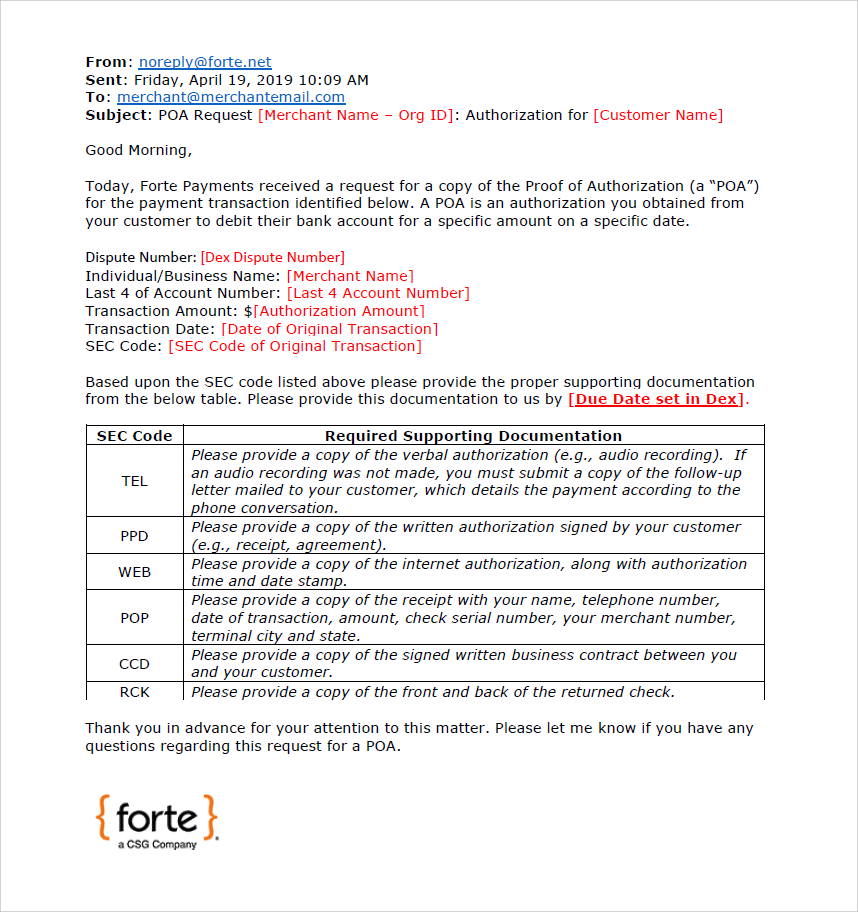
For merchants, ACH disputes can result in revenue losses for the good or service, additional processing fees, increased funding holds, and even account termination. Prior to initiating an ACH chargeback, the consumer's bank will request a Proof of Authorization (POA) from the originator. After receiving this request, Forte's Risk Team will manually enter the POA request into Dex, which will send a notification email to the merchant listing the required authorization documentation. The required authorization documentation varies between Standard Entry Class (SEC) codes. The following table displays the SEC codes that Dex supports for POA requests and the required authorization documentation merchants must provide:

SEC Code

Authorization Documentation

TEL

An audio recording of the customer's verbal authorization. If the merchant did not make an audio recording, he or she must submit a copy of the followup letter mailed to the customer, which lists the authorization information according to the phone conversation.

PPD

A copy of the written authorization that the customer signed.

WEB

A copy of the internet authorization as seen by the customer plus the date, timestamp and user IP address used to transmit the authorization.

POP

A copy of the receipt containing the following information:

Merchant Name
Telephone Number
Transaction InformationDate
Amount
Check Serial Number
Merchant Number
Terminal City
Terminal State

CCD

A copy of the written business contract that the customer signed.

RCK

A copy of the front and back of the check and a copy of the notice to consumers that all checks are converted to ACH entries.

Create an eCheck Dispute

To add an echeck dispute to Dex, log in at the Forte corporate level (i.e., 10000) and complete the following steps:

  1. Access the Transactions Datagrid by clicking Transactions in the Dex main menu.
  2. Search for the desired transaction by First Name, Last Name, Company Name, Trace Number, or Location ID or use the filters (e.g., Status=Funded or Status=Pending) to narrow down the list of results.
  3. When you find the desired transaction click the row on which it displays. The Transaction's Details Screen display.
  4. Click Actions > Dispute. The Create Dispute Modal displays with data from the original transaction, including the authorization information.
  5. Use the date picker in the Due Date field to select a due date for this dispute. Dex defaults the due date for echeck disputes to five days; however, this date can be modified to accommodate banking holidays.
  6. Use the dropdown menu in the Requesting Bank field to select the ODFI that initiated the transaction on the ACH Network. This field is required.
  7. Enter the merchant's email address in the Send to field. Dex allows only one email address for this field. To send copies of the dispute notification email to additional owners or relevant merchant staff, click the CC link and add the email address(es) separated by commas.
  8. If you'd like to add a 500-character or less comment about the dispute, enter it in the Comment field. This comment displays as a Forte-level comment on the Dispute's Details Screen.
  9. Click the Dispute button on the Create Dispute modal. If successful, the Create Dispute modal displays a success message and the 10-digit dispute number. To access the Dispute's Details Screen, click the Dispute Number.

Once you've created the echeck dispute in Dex, the dispute information is automatically transmitted to FreshDesk, which sends the merchant the following email containing all the relevant dispute data and what supporting documentation is required for the response:

If no action is taken on a eCheck dispute with a Documents Needed status, Dex will send reminder emails to users that have subscribed to the Documents Needed notification after 5 days and 9 days.

Changing the Status of a Dispute

Dispute statuses can be manually changed by the Forte's Risk Team at any time during the dispute lifecycle except when the dispute record is in the terminal Accepted status. Status changes for echeck disputes typically occur when the merchant submits documentation for review, if an ACH return entry is submitted by the RDFI, or if the dispute has been in Pending status for 61 consecutive days.

To change the status of a dispute, complete the following steps:

  1. Access the Disputes Datagrid by clicking Disputes from the Dex main menu.
  2. Search for the desired dispute by Customer Name or Dispute Number and/or use the available filters to narrow down the displayed list of disputes on the Disputes Datagrid.
  3. Access the Change Status modal using one of two methods:
    1. From the Disputes Datagrid, click > Change Status next to the dispute's listing.
    2. Access the Dispute's Details Screen and click Actions > Change Status.
  4. Use the dropdown in the New Status field to select the new status. The following options are applicable to echeck disputes:
    • Documents Needed
    • Expired
    • Lost
    • Pending
    • Reviewing
    • Won
    • Accepted
  5. Click the Change Status button on the Change Status Modal. Dex returns you to the previous screen and updates the status of the dispute.

Working with Comments

Merchants, Partners, and Forte employees can all add comments to echeck dispute records. These comments can be classified in one of three different view-level categories:

View Level

Description

Public comments are visible to every user who has access to this dispute record. Merchants can only post Public comments.

Partner comments are visible to partner and Forte corporate users who have access to this dispute record. Merchants cannot see or respond to partner comments.

Forte comments are only visible to members of Forte's Risk Team. Neither merchant nor partner users can see or respond to Forte comments.

Adding a Comment to a Dispute Record

To add a comment to a dispute record, complete the following steps:

  1. Access the Disputes Datagrid by clicking Disputes from the Dex main menu.
  2. Search for the desired dispute by Customer Name or Dispute Number and/or use the available filters to narrow down the displayed list of disputes.
  3. When you find the desired dispute, click the row on which it's listed. The Dispute's Detail Screen displays.
  4. Click the Comments tab.
  5. Enter your 500-character or less comment in the free-text field.
  6. Use the View Level dropdown to select the comment category. Merchants can only make Public comments and partners can make either Public or Partner comments. Corporate users can specify any comment category; however, Forte comments are only visible to other Forte users.
  7. Click the Post Comment button. Dex displays the comment along with your username, date and time when you added the comment, and the view level of the comment.

Replying to a Comment in a Dispute Record

The view level of all comment replies must match the original comment view level (i.e., users can only make Public replies to Public comments). To reply to a comment in a dispute record, complete the following steps:

  1. Access the Disputes Datagrid by clicking Disputes from the Dex main menu.
  2. Search for the desired dispute by Customer Name or Dispute Number and/or use the available filters to narrow down the displayed list of disputes.
  3. When you find the desired dispute, click the row on which it's listed. The Dispute's Detail Screen displays.
  4. Click the Comments tab.
  5. Find the comment you want to reply to and click the Reply button. A free-text field displays.
  6. Enter your 500-character or less reply comment in the free-text field.
  7. Click the Add button. Dex adds the reply to the comment. Click the Show link to view the reply nested beneath the original comments.

Requesting more Information on a eCheck Dispute

If a merchant's supporting documentation does not meet the requirements for the SEC code or the file is illegible, Forte's Risk Team can Request More Info. This action sends the dispute record back into the Documents Needed status. Risk should also include a Public Comment that explains what the merchant must do to improve the situation.

To request more information on a dispute, complete the following steps. NOTE: You can only choose the Request More Info action for Disputes in the Reviewing or Pending statuses. Use the Status filter to narrow down the dispute list.

  1. Access the Disputes Datagrid by clicking Disputes from the Dex main menu.
  2. Search for the desired dispute by Customer Name or Dispute Number and/or use the available filters to narrow down the displayed list of disputes.
  3. Access the Request More Info Modal using one of two methods:
    1. From the Disputes Datagrid, click > Request More Info next to the dispute's listing.
    2. Access the Dispute's Details Screen and click Actions > Request More Info.
  4. Confirm the request by clicking the Request More Info button on the Request More Info Modal. Dex returns you to the previous screen and changes the status of the dispute to Documents Needed.

Submitting Documentation

Once Risk deems the merchant-submitted documentation as sufficient, he or she can download the documents and attach the files to a an email replying back to the RDFI's request. To download a document, complete the following steps:

  1. Access the Disputes Datagrid by clicking Disputes from the Dex main menu.
  2. Search for the desired dispute by Customer Name or Dispute Number and/or use the available filters to narrow down the displayed list of disputes on the Disputes Datagrid.
  3. Click the row on which the desired dispute displays.
  4. If not already selected, click the Items Needed tab.
  5. For each upload, click the  button to download the file to your computer.
  6. Email each downloaded file to the RDFI.
  7. Change the status of the dispute to Pending.

Disputes FAQ

Forte notifies merchants of disputes via email. Dex automatically subscribes you to the New Disputes notification, which will trigger every time your merchant organization receives a new dispute. See Subscribing to Notifications for more information.

For credit card disputes, you have 10 days to either accept the dispute or respond by providing documentation that supports your side. This 10-day limit applies even if the dispute record type changes to an Inquiry to a Chargeback or a Chargeback to a 2nd Chargeback. In fact, you should work those disputes first because some time has already passed and their due dates are fast approaching. The Disputes Datagrid highlights these higher priority disputes with the following color indicators:

 - Indicates the issuer changed the Inquiry into a Chargeback.

 - Indicates the cardholder is pursuing arbitration with the card networks and that this Chargeback was changed into a Second Chargeback.

For echeck disputes, you have 5 days to either accept the dispute or respond with evidence.

Forte charges merchants $25.00 for each credit card or echeck dispute we receive even if the merchant wins the dispute. For Second Chargebacks, we will also collect a processor fee, which is a minimum $500.00. On your invoice, the total dispute fee for the billing period will display under the CCPChgBk billing code. For echeck disputes, the total fee for the billing period will display under the ACHCH billing code.

With a Chargeback, the cardholder's bank takes the transaction amount from you immediately; however, with an Inquiry, the bank merely sends a request seeking a copy of the transaction documentation (i.e., retrieval request) without taking the transaction amount from you. Second Chargebacks occur when the first chargeback was reversed, but the cardholder does not agree with the original decision and files for arbitration via the card network. The card network reviews the documentation from both parties and makes the final decision. Second chargebacks are subject to higher fee amounts (i.e., minimum $500), so before fighting these record types, consider the original transaction amount.

You must respond to credit card disputes within a 10-day window from the time you are notified. Disputes that are Inquiry to Chargeback and Chargeback to 2nd Chargeback record types are on the clock and thus are marked with priority icons on the Disputes Datagrid. Work these disputes first, because time has already passed within the allotted response window.

A Proof of Authorization (POA) occurs when your customer disputes an echeck transaction with their bank and at least 60 days have elapsed since the transaction. Before initiating an ACH Return Entry, the customer's bank will request proof that the merchant properly authorized the transaction. You must respond to POA disputes within 5 days.

A code that indicates the most current action taken for a dispute. These can vary between card networks, but in Dex you'll see the following codes:

  • CACP - Accept of Collection
  • CBRV - Create Outgoing Representment
  • CDNL - Denial of Collection
  • CHGM - Charge Merchant
  • COLL - Collection Letter Ordered
  • CRMR - Credit Merchant
  • IACF - Incoming Compliance
  • IACP - Issuer Accept
  • IARB - Incoming Arbitration
  • IDCL - Issuer Declines
  • IFAV - Case Decided in Issuer Favor (Merchant liable)
  • IPAB - Incoming Pre-Arbitration
  • IREP - Create Outgoing Representment
  • MACP - Merchant Accept
  • MDCL - Merchant Declines
  • MDNL - Merchant Denial
  • MFAV - Case Decided in Merchant's Favor (Merchant not liable)
  • MREV - Merchant Reversal of Chargeback
  • OARB - Outgoing Arbitration
  • OPAR - Outgoing Pre-Arbitration
  • OPARB - Outgoing Pre-Arbitration
  • OREV - Operation Reversal of Chargeback
  • PADM - Pre-Arbitration/Pre-Compliance Debit Merchant
  • PARB - Incoming Visa Pre-Arbitration Request
  • PARE - Pre-Arbitration/Pre-Compliance Debit Merchant
  • PCCR - Arbitration
  • PCHG - Pending Charge Off
  • PCMP - Pre-Compliance Prenote
  • PICR - Arbitration
  • PIDB - Arbitration
  • PMCR - Arbitration/Pre-Compliance Credit Merchant
  • PMDB - Arbitration/Pre-Compliance Credit Merchant
  • RREQ - Incoming Retrieval Request
  • RRSP - Retrieval Request Response
  • VDNL - Vantiv Denies (The documentation the merchant provided is not enough to use for rebuttal)

The status of a dispute indicates where it is in the dispute process. Dex supports the following dispute statuses:

  • Accepted - The merchant accepts liability for the dispute, forfeiting his or her right to continue building a case against the cardholder. Once accepted, Dex returns the disputed amount to the cardholder and adds the dispute fee to the merchant's monthly invoice. NOTE: Disputes with the Record Type = Inquiry cannot be accepted.
  • Documents Needed - The merchant needs to provide sufficient supporting evidence for his/her side of the dispute. Disputes return to this status when the card issuer updates the Record Type (i.e., changes an Inquiry to a Chargeback) or if Forte reviews the submitted evidence and determines that it is insufficient for the reason code.
  • Expired - The processor submitted the dispute as an Inquiry, but the merchant never responded to the request by submitting his or her evidence.
  • Fulfilled - The processor submitted the dispute as an Inquiry, the merchant submitted his or her evidence, and the card issuer did not change the Inquiry to a Chargeback within 31 days of the initial request.
  • Lost - The card issuer decided the dispute in favor of the cardholder or the last funding adjustment was a debit and 61 days have passed after the last funding date. A debit funding adjustment applied to disputes in the Won status can also change a dispute to Lost.
  • Pending - Forte submitted the merchant's evidence to the card issuer and is awaiting a final verdict.
  • Recalled - The processor submitted a full amount dispute for a transaction that occurred prior to 2/4/2019 and then updated the disputed amount to a partial amount. This status can also occur if Forte did not perform the funding on the original transaction (and thus cannot adjust funding for a chargeback).
  • Reviewing - The merchant has submitted his or her evidence and the Forte Risk Team is reviewing them.
  • Won - The card issuer decided the dispute in favor of the merchant, a credit funding adjustment was applied to a dispute in Lost status, or the last funding adjustment was a credit and 61 days have passed after the last funding date.
On this page