Applications
Hi there! Welcome to Dex, Forte's latest and greatest payments application. With Dex, you can view, create, and manage all your transaction data—including customers, payment methods, addresses, and schedules—in one convenient place. You can also view and maintain your merchant account, keep track of your funding entries, resolve disputed transactions, and generate API credentials to connect Dex with your third-party applications.
Merchant Applications Corporate
Working with Merchant Applications
The Merchant Application Datagrid and Application Details Screen enables you to track the progress of an application from submission to enrollment. In Dex, the applications resource provides all the functionality of our legacy Merchant Application Manager (MAM) product, but enhances the UI/UX with FinCen-compliant, user-friendly search features, document upload and commenting capabilities, and automated underwriting enhancements. Dex supports every submission channel for applications, including REST API submissions, Dex Application Invites, and paper/PDF submissions. This flexibility enables us to capture a variety of different merchant and partner accounts and streamline the application process for faster approvals, more consistent decisioning, reduced risk, and less paper.
Creating Digital Applications
NOTE:Â Use this option to create online merchant application records from paper or PDF applications submitted to Forte via email or fax.
You can quickly create a Dex application record for merchants that submit paper applications to Forte (e.g., government merchants) by manually entering their information into Dex. Although initially inconvenient, this process enables Dex to speed up the enrollment process by immediately initiating the automated underwriting checks or—for merchant accounts captured via RFP or cold call by Forte’s Sales—skipping the underwriting checks altogether to place the account directly in the Enrollment Queue.
To create an Dex application record, complete the following steps:
- Navigate to the Merchant Application Datagrid (MerchantApplication > Applications).
- Click the Create New button in the upper, right-hand corner of the screen. The Application Settings Screen displays.
- Complete the following required fields:
Field | Description |
Portfolio ID | Use the dropdown menu to select the applicable Portfolio ID for this Partner. |
Partner Account | The partner organization under which this merchant will be set up in Dex. Merchant accounts captured by Forte Sales should be set up under one of Forte's in-house, corporate partner accounts. Click this field to display a search modal. Enter the Name or Organization ID of the partner. As you type, the modal auto-populates a list of search results. Click on the name of the desired account. |
Sales Rep | Use the dropdown menu to select the applicable sales representative. The values in this field auto-populate based on the value selected in the Partner Account field. |
Rate Plans | Use the dropdown menu to select the applicable Rate Plan for this merchant. Choosing a predefined Rate Plan, automatically completes the Application Type selections. Choosing Manual enables you to pick and choose the services for this merchant in the Application Type field and enter custom pricing at a later time. For example, selecting theVerification Services checkbox displays options where you can choose Validate, Validate Plus or Authenticate verification services. The values in this field auto-populate based on the value selected in the Partner Account field. |
Application Type | For applications using a predefined Rate Plan, this field auto-populates after you choose the applicable Rate Plan in the Rate Plans dropdown menu. If you selected the Manual option in the Rate Plans dropdown menu, you can choose services or combination of services for which the merchant is applying. The following services are supported:
|
Skip Automatic Verification Check? | Indicates whether or not Dex should skip the automated underwriting checks for this merchant application. This field is only required for applications using a Manual Rate Plan. |
- After completing the required fields, click the Launch Merchant Application button. Dex displays the brandless version of the merchant application within Dex.
- Using the data submitted on the paper application, complete the required fields on the digital application in Dex. If you make a mistake after submitting the digital application, you can update the details of the application later.
- After completing the required fields, click the Submit Application button. Dex begins processing the application record (i.e., running the automated underwriting checks) and then displays the application’s status and ID in a pop-up modal.
- If you’d like to create another application, click the Yes button on the pop-up modal. Dex returns you to the Applications Settings Screen. If you do not want to created another application, click the No button on the pop-up modal. Dex returns you to the Merchant Applications Datagrid.
Searching for an Application
The Merchant Application Datagrid enables you to quickly and efficiently search for merchant applications and/or filter the resulting datagrid to find precisely the application on which you want to work or view. The default datagrid displays nine commonly used data columns to identify an application, but can be expanded to include more data columns that display the results of automated checks, the decisioning method, and bank information.
The Merchant Application Datagrid
To access the Merchant Application Datagrid, log in at the corporate level (Forte Payments – 10000) and click Merchant Application > Applications. The following table describes what each data column displays in the default (i.e., unexpanded) datagrid:
Column | Description |
Application ID | The ID number automatically assigned to the application when the merchant submits it. The  that displays next to the Application ID indicates unassigned applications. Currently, Dex automatically assigns merchant applications after submission; manual assignment occurs in Web Tools. |
DBA Name | The "Doing Business As" name of the business. |
Status | The status of the application. Supported values include the following:
|
Received | The date and time when Forte received the merchant application. |
Services | The Forte services for which the merchant applied. Supported values include the following: Core Payments
Verifications Services
Account Updater Alternative Methods of Payment: PayPal Bill Payments
Straight Through Processing |
Assigned To | The name of the Forte employee auto assigned to the application. |
Last Updated | The date and time when the application was last updated. |
Portfolio ID | The name and Portfolio ID of the partner that submitted the application. |
Sales Rep | The name or ID number of the Forte or partner sales representative who originally sent the application to the merchant. |
Click the 
Column | Description |
Select All | Click this option to add all the fields listed in this table to the Merchant Application Datagrid. |
Tax ID | The Tax Identification Number associated with the business or owner of the business. This number could be the primary owner's Social Security Number (SSN) or Individual Taxpayer Identification Number (ITIN) or the Employer Identification Number (EIN) associated with the merchant's business. |
Last 4 SSN | The last four digits of the primary owner's Social Security Number. |
Bank Name | The merchant's primary bank name, routing number, and last four digits of the account number. |
Fee ID | The identification number of the rate plan associated with this merchant application. |
Source | Indicates what the merchant used to submit the application. Supported options include the following:
|
Credit Check | The result of the credit check performed on the merchant's primary owner. Supported options include the following:
|
Consumer Checks | The result of the various, automated authentication and verification checks performed by LexisNexis's Fraudpoint solution using the merchant's submitted ownership data ((P) for the Primary Owner, (2) for the Secondary Owner, (3) for the Tertiary Owner, and (4) for the Quaternary Owner). These checks include CIDV scores, red flag reports, and OFAC verifications. Supported options for these fields include the following:
|
Business Check | The result of the automated verification check performed by LexisNexis's Fraud Defender using the merchant's submitted data. These checks include BIDV scores and red flag reports. Supported options for this field include the following:
|
Risk Check | The result of the automated verification check performed on the merchant's submitted business type, business category, and Merchant Category Code (MCC). Supported options for this field include the following:
|
Phone Check | The result of the automated verification check performed by Twilio on the merchant's phone number. Phone numbers associated with VoIP or prepaid/burner phone automatically puts an application in review. Supported options for this field include the following:
|
Bank Check (Banks 1-6) | The result of the automated Account Owner Authentication (AOA) check performed by Early Warning on each bank account submitted through the application. Supported options for this field include the following:
|
Criminal Check | The result of the automated criminal background check performed by LexisNexis. After obtaining the merchant's Criminal Report, Forte performs validations on it to ensure the merchant has not been arrested or convicted of a specific list of charges involving fraud and financial crimes. Supported options for this field include the following:
|
Internal Check | The result of the automated check Forte conducts on every merchant application to ensure the submitted data falls within our acceptable internal thresholds for that Merchant Category Code, such as maximum and annual sale and payable amounts, ownership types, and High-Risk Partner associations. Supported options for this field include the following:
|
Tin Match | The result of the automated check conducted by the TINCheck web service which verifies that the merchant's Tax Identification Number (TIN) matches the TIN associated with the legal name of the business.
|
Decision Method | Indicates whether the application was Auto decisioned or put through a Manual review by Credit and Risk. |
Finding an Application
Filter | Description |
Received Date | The date when Forte received the application. Use the date picker in both the Start Date and End Date fields to customize the date range of your listed applications. If a date range is not provided, the End Date defaults to today's date and the Start Date defaults to yesterday. You can also choose one of the following pre-set dates/date ranges: Today |
Status | The status of the application. Supported filter values include the following: Approved |
Portfolio Name | Enter the name of the partner that submitted the application. |
Sales Rep | Enter the name of the sales representative associated with the application |
Fee ID | Enter the identification number of the Rate Plan associated with the application. |
If you would like to refine the results of the Merchant Application Datagrid further, you can use more specific filter parameters located under the More Filters field. The following filters are available.
Filter | Description |
Assigned To | Enter the name of the Forte user assigned to this application. |
Last 4 of SSN | Enter the last four digits of the primary owner's Social Security Number. |
Portfolio ID | Enter the Portfolio ID of the organization that submitted the application. |
Services | Use the dropdown to select the Forte services for which the merchant applied. Supported values include the following: Core Payments
Verification Services
Account Updater Alternative Methods of Payment: PayPal Bill Payments
Straight Through Processing |
Source | Use the dropdown to select how the merchant submitted his/her application. Supported options include the following:
|
Tax ID | Enter the primary owner's Social Security Number (SSN) or Individual Taxpayer Identification Number (ITIN) or the Employer Identification Number (EIN) associated with the merchant's business. |
Verification Checks | Use the dropdown to select the verification checks and specified result associated with the merchant's application. The checks that can be used to filter the datagrid include the following:
Within each Verification Check filter field you select, use the dropdown menu to filter the datagrid by result. The Verification Check filter fields support the following result values:
|
Viewing the Details of an Application
An Application's Details Screen provides you with a snapshot of that merchant's business, bank account, owner(s), and pricing details. It also enables you to view and print a detailed report on what verification checks Forte performed for the application and their results; enables you to view, upload and delete the business, banking, and identity verification documents required for manual review; and gives you the ability to comment on an application that your are in the process of reviewing.
To access a Merchant Application's Details Screen, search for the application by Application ID or DBA Name or filter the Merchant Application Summary Datagrid. Once you've found the desired application, click on the row on which it's listed. That Application's Details Screen displays.
Card/Tab | Parameter | Description | |
Application Details | Status | The status of the application. Supported options include the following:
| |
Application ID | A unique, six-digit identification number that Dex created when the merchant submitted the application. | ||
Legal Name | The legal name of the merchant's business. The name must match the Tax Identification Number (TIN) associated with the business. | ||
Business Website | If provided, the URL of the merchant's business website. | ||
General Information | DBA Name | The "Doing Business As" name of the merchant. Typically, this is the name that will appear on customer bank statements. | |
Legal Name | The legal name of the merchant's business. The name must match the Tax Identification Number (TIN) associated with the business. | ||
Address | The street, city, state, and ZIP code of the merchant's business. | ||
Customer Service Phone | The phone number associated with the merchant's Customer Service Team. | ||
Services | The services for which the merchant applied. Supported options include the following:
| ||
Sales Rep | The name and identification number of the Partner or Forte Sales Representative that worked with the merchant. | ||
Ownership Type | The ownership structure of the business. Supported options include the following:
| ||
Business Type | The type of business category this merchant's business falls under. The values in this field map to the merchant's Business Classification Code. | ||
Tax ID | The merchant's Tax Identification Number. Accepted values include the Primary Owner/Controller's Social Security Number (SSN) or Individual Taxpayer Identification Number (ITIN) or the Employer Identification Number (EIN) of the business. The value in this field must match the Legal Name value on file with the IRS. | ||
Merchant Category | The Merchant Category Code that identifies the type of merchant industry. | ||
Source | Indicates how this merchant application was submitted. Supported values include the following:
| ||
Most Transactions Via | Indicates the method by which the merchant captures transactions. Supported values include the following:
| ||
Portfolio ID | The name of the partner or in-house Forte Sales Organization that sent the merchant an application. | ||
Banking Information (upto 6 Bank Accounts) | The name, account number, and account type of the merchant's bank account. Users with the appropriate permissions can view the full account number associated with the merchant. | ||
Received Date | The date when Forte received the application from the merchant. | ||
Last Updated Date | The date when the application was last updated. | ||
Assigned To Date | The date that Forte assigned the application to a member of Forte's Credit and Risk Team. | ||
Attachments | Displays the three categories of supporting documentation required for merchant applications. These categories include Business Information, Acct. Controller/Owner Information, and Banking Information. See Adding Attachments to an Application for more information. | ||
Comments | Displays comments about the application and enables you to create and reply to comments. | ||
Verification Checks | Displays every automated verification check that Forte ran on this merchant application when the merchant submitted it and the result of that check. To view the details of what each check found, click on it; the Verifications Checks tab expands to provide you more detail on that particular check NOTE: Not available for Skipped checks.
This summary report displays the details and result of each check on one page, so that you don't have to click on each individual check to view its details. | ||
Underwriting | Displays the average and maximum allowable amounts for credit card and/or ACH sale transactions and the average, maximum, and monthly amounts the merchant disburses in credit transactions (e.g., refunds, payroll, commissions, etc.). This tab also displays the FBCC code, pricing tier, MSA version, and Risk Session ID that ThreatMetrix creates after profiling the merchant's browser. Use this value when comparing the Risk Session ID values stored in ThreatMetrix to see whether or not the merchant's application contains irregularities or fraud patterns. | ||
Pricing | Provides a breakdown of every fee Forte will charge the merchant for various enrollment and transaction activities. Additionally, this tab displays any free trial transactions that the Sales Team may have negotiated with the merchant (e.g., if a partner offered merchants the first 50 Validate transactions free). The prices displayed originate from the Rate Plan under which the merchant applied. | ||
Controller / Owner | Provides a snapshot of every owner that has a 25% or greater stake in the business. Clicking the row on which the owner's information displays expands the tab to display additional information about the owner. To edit an individual owner's information, click the Edit button that displays next to the owner's name. NOTE: To edit all owners at once, edit click the Edit All Owners button to access the Edit Application modal. The Edit Owner modal displays where you can update the following fields:
NOTE: Modifying fields for the Primary Owner will require you to rerun most, if not all, verification checks. | ||
Adding Documents to an Application
Applications require supporting documentation under the following circumstances:
- The agreed-to Merchant Services Agreement does not include a Personal Guarantor clause
- The merchant’s Annual Volume Amount or Maximum Transaction Amount exceed Forte’s internal risk thresholds
- Forte considers the merchant a high-risk business
To minimize risk with these applications, Forte requires supplemental supporting documentation from the merchant within three categories: Business Information, Account Controller/Owner Information, and Banking Information. This supporting documentation can include any of the following:
- Previous two months of processing statements
- Contracts that the merchant maintains with its customers
- Business Leases
- Previous two years of tax returns
- Previous two months of complete bank statements
- Advertisements/brochures
- Two years of the most recent fiscal year-end Business Financial Statement, such as a Balance Sheet, a Profit and Loss Statement, and/or a Statement of Cash Flow
- Personal Financial Statement
- Starting Balance Sheet
Documents can be uploaded to the application from either the Merchant Application Datagrid or the Application’s Details Screen.
To upload an attachment for an application, complete the following steps:
- Access the Merchant Application Datagrid by clicking MerchantApplication > Applications.
- Search for the desired application or filter the datagrid display.
- Access the Upload Application Attachments Modal using one of two methods:
- From the Merchant Application Datagrid, clickÂ
> Upload Documents next to the application’s listing.
- Access the Merchant Application’s Details Screen and click on the Documents tab.
- From the Merchant Application Datagrid, clickÂ
- Click the Browse button on the Documents tab to upload the file using your computer’s File Explorer Window or simply drag and drop the document onto the Documents tab. The Upload Application Documents Modal displays.
- Under the file name, use the dropdown menu to select whether this document pertains to one of the following categories:
- Business Information
- Account Controller/Owner Information
- Banking Information
- Under the Category field, use the dropdown menu to select the privacy settings for this document from one of the following options:
- Visible to Forte only (default)
- Visible to Partner and Forte
- Visible to All
- Click the Upload button on the Upload Application Documents Modal. Dex returns you to the Merchant Application Datagrid or the Merchant Application’s Details Screen with the Documents tab displaying the uploaded document.
After a document is uploaded to an application in a pending status, a Documents Received email will be sent to the risk analyst that the application is assigned to. If the risk analyst assigned to the application uploads the document, no email is sent.
Working with Uploaded Documents
NOTE:Â Only Corporate users can download, edit, or delete a document. Read permissions depend on the privacy settings of the document (e.g., Visible to Forte Only, Visible to Partner and Forte, etc.)
The Application’s Details Screen gives you the ability to view, download, delete and edit the file name of documentation that was previously uploaded. To view, download, edit, or delete a document, complete the following steps:
- Access the Application’s Details Screen by searching or filtering the Merchant Application Datagrid and then clicking on the row displaying the desired application. The Application’s Details Screen displays.
- Navigate to the Documents tab to view the uploaded documents in the “Total Uploads” section.
- To find the desired document, search for it by file name or filter the displayed list of items by its Privacy setting. Supported privacy filter options include the following:
- Visible to Forte Only
- Visible to Partner and Forte
- Visible to All
- Use the following buttons to perform actions on the document:
Button | Description |
The Edit button. This button allows you to edit the name, category, and privacy settings of the attachment. | |
The View button. This button enables you to view the contents of the attachment in the web browser you use to access Dex. NOTE: Pop-ups must be enabled for Dex sites in your browser to view an document. | |
The Download button. This button enables you to download a local version of the document to your computer. | |
The Delete button. This button allows you to delete the document from the application details. NOTE: Not all corporate users have permissions to delete a document. |
Edit the General Information
Dex enables you to modify the requested services in an application and update it’s business, owner, and anticipated volume information. Only applications in Open, Submitted, or Pending status can be edited. Some changes (such as updating the Primary Owner’s SSN) may require you to re-run all or some of the Verification Checks and obtain new scores (consult your department’s policies for more information). Fortunately, you can re-run those checks directly from the Edit Applications Modal.
To edit the general information of an application, complete the following steps:
- Access the Applications Datagrid by clicking Merchant Applications > Applications.
- Search for the desired application or filter the Applications Datagrid display. After finding the desired application, click the row on which it’s listed to access the Application’s Details Screen.
- Click the Edit button in the “General Information” box or click the Edit All Owners button under the Controller/Owners tab or click Actions > Edit to access the Edit Applications Modal.
- The following fields can be modified:
Field | Description |
General | |
DBA Name | The "Doing Business As" name of the business. This is the name that will display on customer statements, so make sure it's spelled correctly. |
Legal Name | The legal name of the business. The value in this field must match the Tax Identification Number associated with the business. |
Address Line 1 | The first line of the physical business address. |
Address Line 2 | If necessary, the second line of the physical business address (e.g., Suite, Apt, etc.). |
Postal | The ZIP or postal code of the physical business address. Dex uses the value in this field to automatically populate the values in the City, State, and Country fields. |
City | The city of the physical business address. Dex auto-populates this field using the value in the Postal field. |
State | The state of the physical business address. Dex auto-populates this field using the value in the Postal field. |
Country | The country of the physical business address. Dex auto-populates this field using the value in the Postal field. |
Tax ID | The primary owner's Social Security Number (SSN) or Individual Taxpayer Identification Number (ITIN) or the Employer Identification Number (EIN) associated with the business. This number must match the Tax Identification Number (TIN) associated with the Legal Name of the business. |
Customer Service Phone Number | The phone number the merchant provides to its customers for customer service or technical support inquiries. |
Website | The merchant's business website. The value of this field must include the www prefix (e.g., www.mycompanysite.com). Slashes and underscores are allowed in the URL. |
Ownership Type | The legal structure of the business. Use the dropdown to select one of the following supported options: Sole Proprietorship |
Owners | |
First Name | The first name of the owner. |
Last Name | The last name of the owner. |
Date of Birth | The owner's date of birth. All owners must be 18 years of age or older. |
Social Security Number | The last four digits of the owner's social security number. |
Mobile Phone Number | The owner's cell phone number. |
The owner's email address. | |
Address Line 1 | The first line of the owner's physical address. This field does NOT support P.O. boxes or paid mailbox services provided by companies like the UPS Store. |
Address Line 2 | The second line of the owner's physical address (e.g., Suite or Apt). |
Postal Code | The zip code of the owner's physical address. |
City | The city of the owner's physical address. |
State - United States | The state of the owner's physical address. Use the dropdown to select a value for this field. |
Citizenship | The country where the owner holds citizenship. Use the dropdown to select a value for this field. |
Ownership Percentage | The percentage share the owner has in the business. Owners must have at least a 25% stake in the business. |
Title | The official title of the Primary Owner. This field only displays when modifying the details of a Primary Owner. |
Services | |
Business Category | Use the dropdown to select the industry segment to which this merchant's business belongs: Professional, Personal, and Business Services |
FBCC | Use the dropdown to select the specific Forte Business Classification Code for this merchant's business. Dex auto populates the values in this field using the selection you made in the Business Category field. |
Intended Use | Use the dropdown to select whether the merchant intends to use Forte's services for Sale transaction, disbursement transactions such as Payroll/Vendor Payments, or both sale and disbursement transactions. The supported options for this field include the following: Sales |
Anticipated Volume | |
Avg. Sale | The average amount of sale transactions the merchant performs. |
Max. Sale | The maximum amount of a sale transaction that a merchant could perform. |
Annual Volume | The volume of sale transactions that the merchant performs each year. |
Avg. Payable | The average amount the merchant disburses in credit transactions (e.g., refunds, payroll, commissions, etc.) |
Max. Payable | The maximum amount the merchant would disburse in a credit transaction (e.g., refunds, payroll, commissions, etc.) |
Monthly Payable | An estimate of the amount the merchant disburses in credit transactions (e.g., refunds, payroll, commissions, etc.) each month. |
- If the changes you make to the application require you to re-run Verification Checks, you can do so directly from the Edit Application Modal by clicking the Verification Checks Selected button. A Verification Checks Slider Modal displays where you can individually select the checks you want to perform. After selecting the checks you want to re-run, click the Verification Checks Selected button again to return to the Edit Application modal.
- After modifying the necessary fields, click the Submit button to return to the Application’s Details Screen. Dex re-runs the verification checks and then updates the values displayed in the Verification Checks tab to indicate their results.
Edit the Banking Information
With the appropriate permissions, you can update the bank account information submitted with the merchant’s application. The applicant’s bank account can be either a business savings or business checking account. It cannot be the applicant’s personal checking or savings account. To update the bank account information for an application, complete the following steps:
- Access the Applications Datagrid by clicking Merchant Applications > Applications.
- Search for the desired application or filter the Applications Datagrid display. After finding the desired application, click the row on which it’s listed to access the Application’s Details Screen.
- Scroll to the “Banking Information” box and click the Edit Bank link. The Edit Banking Modal displays.
- Complete the following required fields to modify the bank account:
Field | Description |
Account Type | Use the radio button to select whether this is a business Checking account or a business Savings account. |
Routing Number | Enter the bank's transit routing number. After entering this value, Dex auto-populates the name of the bank in the Bank Name field. |
Bank Name | The name of the bank. This field is read-only and auto-populates after you enter the bank's transit routing number in the Routing Number field. |
Account Number | Enter the account number of the business checking or business savings account the merchant uses. |
Confirm Account Number |
- After modifying the required fields, click the Submit button to return to the Application’s Details Screen. Dex updates information that displays in the “Banking Information” box.
Rerunning Verification Checks
Dex enables you to individually rerun the Credit, Consumer, and Business Verification Checks directly from the Application’s Detail Screen. You also have the ability to run all the Verification Checks at once. Credit checks are only run on the Primary Owner. Multiple credit inquiries can negatively affect the Primary Owner’s credit score. Always use caution when rerunning credit checks.
Rerun All Verification Checks
To rerun all Verification Checks at once, complete the following steps:
- Access the Applications Datagrid by clicking Merchant Applications > Applications.
- Search for the desired application or filter the Applications Datagrid display. After finding the desired application, click the row on which it’s listed to access the Application’s Details Screen.
- Navigate to the Verification Checks tab and click the Run All button that displays at the bottom of the tab. The Run/Rerun Verification Checks Modal displays.
- Verify the action by clicking the Run button on the Run/Rerun Verification Checks Modal. Dex reruns the checks on the backend and displays a message indicating whether or not the checks were successfully completed.
Rerun a Specific Check
To rerun a specific Verification Checks, complete the following steps:
- Access the Applications Datagrid by clicking Merchant Applications > Applications.
- Search for the desired application or filter the Applications Datagrid display. After finding the desired application, click the row on which it’s listed to access the Application’s Details Screen.
- Navigate to the Verification Checks tab.
- Click on the check you want to rerun. The Verification Checks tab expands and displays the results of the original check.
- Click the Rerun Check button that displays in the expanded Verification Checks tab. If the check you’re rerunning is the credit check, a Run/Rerun Verification Checks confirmation popup displays warning you that running another credit check can negatively impact the applicant’s credit score. Click the Run button to continue. Dex displays a message indicating whether or not the check returned a result.
- Repeat steps 2 and 3 to rerun additional checks.
Commenting on an Application
Forte employees and Partners can add comments to an application. These comments can be classified in one of two different view-level categories:
View Level | Description |
Partner comments are visible to Partner and Forte corporate users who have access to this application. | |
Forte comments are only visible to other Forte employees. Partner users cannot see or respond to Forte comments. |
Adding a Comment to an Application
To add a comment to an application, complete the following steps:
- Access the Applications Datagrid by clicking Merchant Applications > Applications.
- Search for the desired application or filter the Applications Datagrid display. After finding the desired application, click the row on which it’s listed to access the Application’s Details Screen.
- Navigate to the Comments tab.
- Enter your comment in the free-text field.
- Use the dropdown in the lower-right corner of the Comments tab to select the comment category. Partners can make Partner comments, which are visible to Forte employees. To restrict your comment to only other Forte employees, select Forte.
- Click the Comment button. Your comment displays at the bottom of the Comments tab.
Once a comment is created on the Application Detail > Comments tab an email will be triggered to notify specific recipients that a new comment has been entered for the application. These emails will only trigger when an application is in a pending status.
Replying to a Comment
The view level of all comment replies must match the original comment view level (i.e., users can only make Partner replies to Partner comments).
To reply to a comment in an application, complete the following steps:
- Access the Applications Datagrid by clicking Merchant Applications > Applications.
- Search for the desired application or filter the Applications Datagrid display. After finding the desired application, click the row on which it’s listed to access the Application’s Details Screen.
- Navigate to the Comments tab.
- Find the comment to which you want to reply and click the Reply button that displays beneath it.
- Enter your reply comment in the free-text field.
- Use the dropdown in the lower-right corner of the Comments tab to select the reply comment category. Partners can make Partner reply comments, which are visible to Forte employees. To restrict your reply comment to only other Forte employees, select Forte.
- Click the Comment button. Your reply comment displays as a nested reply beneath the original comment.
Once a reply to a comment is created on the Application Detail > Comments tab an email will be triggered to notify specific recipients that a new comment has been entered for the application. These emails will only trigger when an application is in a pending status.
Rejecting an Application
When you cannot verify the identity data of an application or cannot authenticate the banking data or signatures, Dex enables you to reject an application. Applications in Open, Submitted, and Pending status can be rejected from either the Merchant Application Datagrid or the Application’s Detail Screen. Once you place an application in Rejected status, it can only be declined or sent back to Pending status for manual review.
NOTE: To send notifications for applications that are auto-declined or auto-rejected, access the Application’s Details Screen and then click Actions > Notify. Dex will display the Decline Modal. From here you can create the notification by following steps 6–10 below.
To reject an application, complete the following steps:
- Access the Applications Datagrid by clicking Merchant Applications > Applications.
- Search for the desired application or filter the Applications Datagrid display.
- Access the Reject Modal using one of two methods:
- From the Applications Datagrid, clickÂ
> Reject on the row on which the application displays.
- Access the Application’s Details Screen and click Actions > Reject.
- From the Applications Datagrid, clickÂ
- Select one or more of the following reasons for rejecting the application by clicking the applicable checkboxes:
- Missing or Incomplete Pricing
- Incomplete or Invalid Bank Information
- Incomplete or Inaccurate Tax ID/EIN
- Unable to Verify SSN
- Unable to Verify Date of Birth
- Invalid Signatures
- Click the Next button. The modal displays a customizable email template for the “Application Rejected” notification.
- Use the applicable radio buttons to select whether you want to notify the Merchant Primary (i.e, primary owner), the Partner Contact, or the Partner Sales Rep.
- In the To: field, enter the email address of the merchant or partner contact or click the Autofill button to auto-populate it.
- If necessary, enter text updates to the email’s subject line in the Subject field.
- If necessary, customize the text of the email using the following menu options:
Menu Option | Description |
File | If you want to delete the generic, default message that displays in the email text field and add your own custom message, select New Document. NOTE: This will also delete the generated link to the merchant application. Copy this link prior to selecting the New Document option. If you want a printed copy of the message, select the Print (Ctrl + P) option. |
Edit | This menu option contains the following available actions: Undo (Ctrl + Z) - Reverses the last action you made to the email text. |
Insert | This menu option contains the following available actions: Media - Use this option to link or embed HTML5 video or audio elements to your email, such as YouTube marketing collateral or training videos. |
View | This menu option contains the following available actions: Show Invisible Characters - Select this option to choose whether or not to display invisible characters in the email text, such as . |
Format | This menu option contains the following formatting actions: Bold (Ctrl + B) - Makes the selected text bold. |
Table | To add a table to you email, select the Table option to define the number of rows and columns to add to your table. After adding a table, the Table Properties, Delete Table, Cell, Row, and Column options become selectable. Use these options to customize the formatting of your table, add rows and columns, and merge or split cells in your table. |
Tools | Select Source Code to view and edit the HTML used to format this email. This option can be helpful if you prefer to simply copy and paste an already formatted email template that contains the media, images, formatting, and/or the color scheme you want to include. |
- When you complete the “Application Rejected” notification, click the Reject button. Dex returns you the previous screen and changes the status of the application to Rejected.
Recalling an Application
If an applicant stops responding to requests for information from Forte or the Partner, Dex enables you to recall his or her application. Only applications in Pending status can be recalled from either the Merchant Application Datagrid or the Application’s Detail Screen. Once you put an application in Recalled status, it can only be declined or sent back to Pending status for manual review.
To recall an application, complete the following steps:
- Access the Applications Datagrid by clicking Merchant Applications > Applications.
- Search for the desired application or filter the Applications Datagrid display.
- Access the Recall Modal using one of two methods:
- From the Applications Datagrid, clickÂ
> Recall on the row on which the application displays.
- Access the Application’s Details Screen and click Actions > Recall.
- From the Applications Datagrid, clickÂ
- Select one or more of the following reasons for recalling the application by clicking the applicable checkboxes:
- Incomplete Application
- Application Not Responding
- Partner Request
- After selecting the recall reason, click the Recall button on the Recall Modal. Dex returns you the previous screen and changes the status of the application to Recalled.
Declining an Application
When you find fraud, inconsistent information, or data that falls outside Forte’s underwriting thresholds, Dex enables you to decline an application from that Application’s Detail Screen. Only applications in the Approved, Pending, Submitted, Recalled, or Rejected status can be declined. Once you decline an application, a Letter of Adverse Action notification is auto-generated and sent to the partner and/or the merchant indicating why Forte declined the application. Declined applications can only be reopened by sending it to manual review and placing it back into Pending status.
NOTE: To send notifications for applications that are auto-declined or auto-rejected, access the Application’s Details Screen and then click Actions > Notify. Dex will display the Decline Modal. From here you can create the notification by following steps 6–10 below.
To manually decline an application, complete the following steps:
- Access the Applications Datagrid by clicking Merchant Applications > Applications.
- Search for the desired application or filter the Applications Datagrid display. After finding the desired application, click the row on which it’s listed to access the Application’s Details Screen.
- Click Actions > Decline. The Decline Modal displays.
- Select one or more of the following reasons for declining the application by clicking the applicable checkboxes:
- Confirmed Fraud
- Suspected Fraud
- Type of Business
- Inconsistent Information
- Info Found During the Due Diligence Review
- Click the Next button. The modal displays a customizable email template for the “Application Declined” notification.
- Use the applicable radio buttons to select whether you want to notify the Merchant Primary (i.e, primary owner), the ISO Contact, or the ISO Sales Rep.
- In the To: field, enter the email address of the merchant or partner contact or click the Autofill button to auto-populate it.
- If necessary, enter text updates to the email’s subject line in the Subject field.
- If necessary, customize the text of the email using the following menu options:
Menu Option | Description |
File | If you want to delete the generic, default message that displays in the email text field and add your own custom message, select New Document. NOTE: This will also delete the generated link to the merchant application. Copy this link prior to selecting the New Document option. If you want a printed copy of the message, select the Print (Ctrl + P) option. |
Edit | This menu option contains the following available actions: Undo (Ctrl + Z) - Reverses the last action you made to the email text. |
Insert | This menu option contains the following available actions: Media - Use this option to link or embed HTML5 video or audio elements to your email, such as YouTube marketing collateral or training videos. |
View | This menu option contains the following available actions: Show Invisible Characters - Select this option to choose whether or not to display invisible characters in the email text, such as . |
Format | This menu option contains the following formatting actions: Bold (Ctrl + B) - Makes the selected text bold. |
Table | To add a table to you email, select the Table option to define the number of rows and columns to add to your table. After adding a table, the Table Properties, Delete Table, Cell, Row, and Column options become selectable. Use these options to customize the formatting of your table, add rows and columns, and merge or split cells in your table. |
Tools | Select Source Code to view and edit the HTML used to format this email. This option can be helpful if you prefer to simply copy and paste an already formatted email template that contains the media, images, formatting, and/or the color scheme you want to include. |
- When you complete the “Application Decline” notification, click the Decline button on the Decline Modal. Dex returns you to the Application’s Detail Screen, changes the application’s status to Declined, and displays the Decline Detail Reason and Decline Reason fields above the “General Information” card. NOTE: Only Forte users can see the value of the Decline Detail Reason field.
Reviewing an Application
Applications in Approved, Processing, Rejected, Recalled, or Declined status can be sent for manual review from either the Merchant Application Datagrid or the Application’s Detail Screen. An application may need additional review if Forte discovers fraudulent or inaccurate information or if an application was mistakenly rejected or recalled.
To send an application to review, complete the following steps:
- Access the Applications Datagrid by clicking Merchant Applications > Applications.
- Search for the desired application or filter the Applications Datagrid display.
- Access the Review Modal using one of two methods:
- From the Applications Datagrid, clickÂ
> Review on the row on which the application displays.
- Access the Application’s Details Screen and click Actions > Review.
- From the Applications Datagrid, clickÂ
- Enter a 500-character or less comment in the free-text field on the Review Modal.
- Click the Review button. Dex returns you the previous screen and changes the status of the application to Pending.
Approving an Application
After verifying an applicant’s identity and ensuring his/her credit, consumer, and business scores fall within Forte’s acceptable thresholds, you can then approve the application and initiate the merchant onboarding process. Manual approval require you to define values for the merchant’s limits, discount fees, reserve rates, and/if applicable, funding hold days and validation sources for Early Warning Services. Only Pending applications can be manually approved. Once approved, applications can be sent for an additional review (putting them back in Pending status), declined, or enrolled.
To manually approve an application, complete the following steps:
- Access the Applications Datagrid by clicking Merchant Applications > Applications.
- Search for the desired application or filter the Applications Datagrid display.
- After finding the desired application, click the row on which it’s listed to access the Application’s Details Screen.
- Click Actions > Approve. The Approve Modal displays.
- Complete the required fields:
Field | Description | Required? |
eCheck | ||
Debits/Credits Hold Days | The number of hold days required for the settlement of echeck debit (e.g., sales) transactions and the origination of credit (e.g., disbursements) transactions. The standard hold time is four business banking days, to which Dex defaults when manually approving applications. You can increase or decrease the number of hold days by moving the slider to the right or left. Dex supports a maximum of 10 hold days. Merchants who want to reduce their hold time to less than four business days must complete a Faster Funding Request form and submit the required documentation. | Required |
Debits/Credits Per | The maximum dollar amount this merchant can charge for echeck debit transactions or the maximum dollar amount this merchant can disburse for echeck credit transactions. This amount limit cannot be higher than the Daily or Monthly limits. | Required |
Debits/Credits Daily | The total dollar amount this merchant can charge in a 24-hour period for echeck debit transactions or the total dollar amount this merchant can disburse in a 24-hour period for echeck credit transactions. | Required |
Debits/Credits Monthly | The total dollar amount this merchant can charge in a 1-month period for echeck debit transactions or the total dollar amount this merchant can disburse in a 1-month period for echeck credit transactions. | Required |
Debits/Credits Discount Fee | The Discount Fee percentage for echeck debit or echeck credit transactions. Select the High or Low radio button to select the appropriate level for the Discount Fee. | Optional |
Reserve | The percentage of echeck transaction amounts that Forte holds for the merchant to offset amounts owed to Forte, such as returned items, chargebacks, fees/fines or billing obligations. | Optional |
Credit Cards | ||
Per | The maximum dollar amount per transaction that this merchant can process for credit card transactions. | Required |
Monthly | The maximum dollar amount that this merchant can process for credit card transactions within a 1-month period. | Required |
Reserve | The percentage of credit card transaction amounts that Forte holds for the merchant to offset amounts owed to Forte, such as returned items, chargebacks, fees/fines or billing obligations. | Optional |
Funding Hold | ||
Funding Hold | Indicates whether or not this merchant requires a funding hold. Click the toggle to indicate the funding hold and add a comment stating that "Application has been approved on Funding Hold." | Optional |
Bank Account Verification - Validate Plus | ||
Early Warning - AOA | Selecting Early Warning - AOA, will set AOA as a validation source for Validate Plus verifications and will automatically queue the merchant for boarding to Early Warning at the time the application is enrolled. | Atleast one validation source must be selected. |
Payliance - SPS | Selecting Payliance - SPS, will set Payliance as a validation source for Validate Plus verifications at the time the application is enrolled. | Atleast one validation source must be selected. |
- After entering the required limit amounts and selecting the validation sources if required, click the Comments button if you wish to add a comment that will display in both Dex and Web Tools. The Leave a Comment modal displays.
- Enter your 500-character or less comment in the provided free-text field.
- After updating the limit amounts, selecting the validation sources if required, and/or adding a comment about the application, click the Approve button. Dex returns you to the Application’s Detail screen with the application’s status changed to Approved. The Underwriting tab also displays an “Approval” box that contains the merchant’s defined processing limits, reserve percentages, and Discount Fee percentages. NOTE: Only Forte employees can see the “Approval” box on the Application’s Detail Screen.
Enrolling an Application
NOTE:Â This functionality is only available to corporate users with the role of Enrollment Manager or Enrollment Specialist.
Once Credit and Risk approves a merchant’s application, the Enrollment Team can enroll the merchant from Dex and automatically create an organization and/or location. Prior to enrolling the merchant, you’ll need to know the following information:
- Will this merchant share a Tax ID with an already live merchant organization in Dex? (If so, Dex will create an additional location for the partner.)
- Will this merchant use an existing Transmitter ID or a new one?
- Does this merchant need to be boarded to a PayFac Profile?
- Will this merchant need FTP credentials?
- Will this user need a VT username and password?
To enroll a merchant’s application, complete the following steps:
- Access the Applications Datagrid by clicking Merchant Applications > Applications.
- Search for the desired application or filter the Applications Datagrid display.
- Access the Enrollment Settings Modal using one of two methods:
- From the Applications Datagrid, clickÂ
> Enroll on the row on which the application displays.
- Access the Application’s Details Screen and click Actions > Enroll.
- From the Applications Datagrid, clickÂ
- If the purpose of this application is to create another location (i.e., processing endpoint) for an existing merchant organization, then use the dropdown to select the applicable Organization ID. If the purpose of this application is to create both an Organization and a Location (i.e., a merchant account with Forte and a processing endpoint), then skip ahead to the next step.
- If needed, use the dropdown menu in the Enrollment Template field to select an partner-specific enrollment configuration. The enrollment templates listed here are maintained in WebTools. If you choose to select an enrollment template, skip to step 10.
- Click the radio button indicating whether you want to create a new Transmitter ID (i.e., Create New) for this merchant or use an existing Transmitter ID (i.e., Use Existing). If you select the Use Existing option, an auto-populated dropdown appears where you can scroll through the list of existing Transmitter IDs and select the appropriate value for this merchant. If you select the Create New option, Dex automatically creates a new Transmitter ID value using the merchant’s Legal Name.
- Click the Create FTP checkbox to indicate whether or not Dex needs to create FTP credentials for the merchant so that he/she will have access to Forte’s Secure FTP Web Interface.
- Click the Create VT User checkbox to indicate whether or not Dex needs to create a Virtual Terminal user account to this merchant.
- Click the Board to PayFac checkbox to automatically board this merchant to a PayFac Profile. Use the dropdown menu in the PayFac Destination field to select the PayFac Profile where you will board the merchant.
- After configuring all the necessary enrollment settings, click the Enroll button. The Enrollment Settings modal displays whether or not the enrollment was successful and—depending on the settings you selected—displays all the necessary credentials and boarding information the merchant will need to access the Forte platform.
- Click the Send Approval Letter button to send the ID and Password Approval Letters. The modal displays either the default letters for the applicable services or an partner-specific custom letter based on the selected enrollment template. NOTE: If the merchant is auto-enrolled with a TINCheck failure, Dex automatically adds TIN mismatch language to the credential letters. Use the formatting options displayed to customize the text, alignment, lists, and table properties in the letter. NOTE: To edit table properties, click within the table in the message. The table formatting buttons automatically display.
- After reviewing the letters, click the Send button to email the letters to the merchant and, if applicable, partner. Dex displays a message indicating whether the letters were successfully sent. Click the Close button to return to the Applications Datagrid or the Application’s Details Screen. After enrolling the merchant, Dex creates a .pdf copy of the application, rate plan, and merchant service agreement and adds it to the Attachments tab of the newly created merchant location. This file is only visible to Forte employees and Merchant Admins.
Handling TIN Mismatches
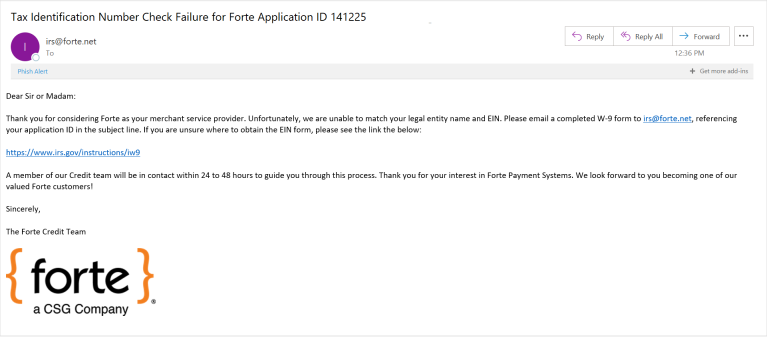
When merchants apply for an account on the Forte platform, we route the data supplied in their application through a sequenced series of automated checks and validations regarding criminal convictions, identity authentication, and credit history. One of these validations includes a service called TINCheck, a SOAP-based web service that verifies a merchant's Tax Identification Number (TIN) with the legal name of the business in real-time.
When an application passes every validation except the TINCheck (i.e., TINNAME_CODE=0 or 5), Forte provisionally approves it with a funding and credit hold (NOTE: These settings do not apply in the Sandbox environment). Merchants have up to 60 days to provide the correct TINCheck values before Forte closes the account for noncompliance. Funds remaining in a closed merchant account will be handled in compliance with state laws, which may include escheatment to the state for disbursement.
Notifying the Merchant
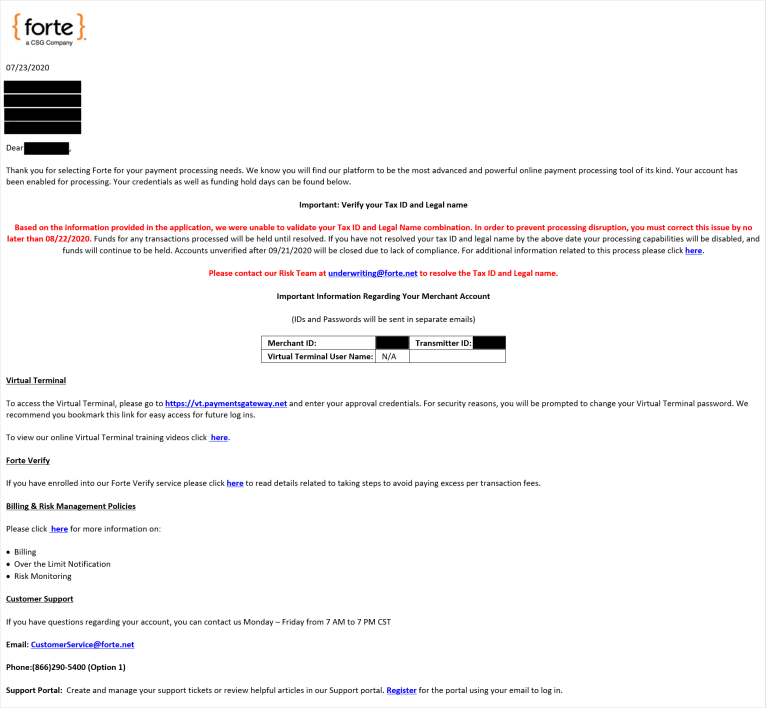
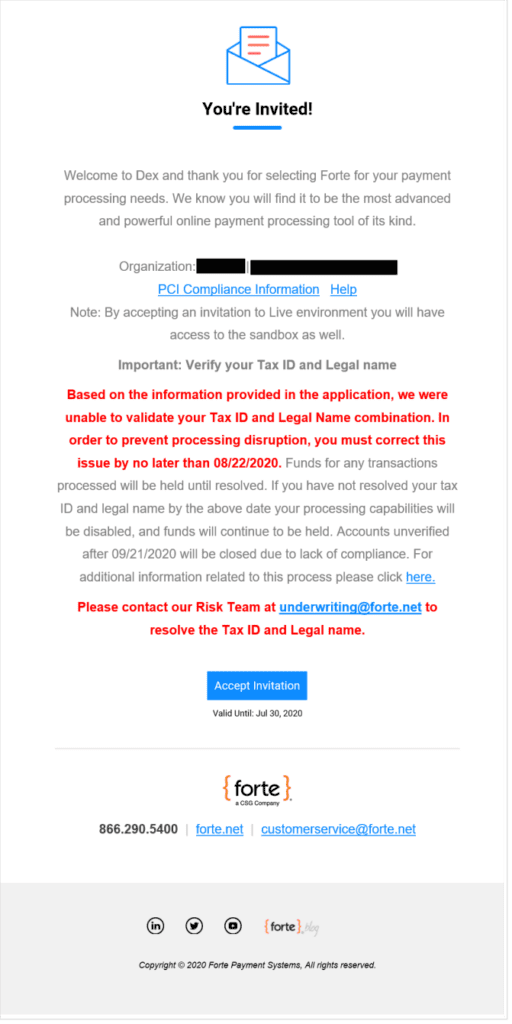
After the merchant submits an application with a TIN mismatch, Dex automatically approves the application with a funding and credit hold, turns on the TIN Mismatch Flag, and adds the following Forte-only comments to the Application’s Details Screen:
- Application Auto Approved with a TIN mismatch
- Funding Hold – auto approved with a TIN Mismatch
- Credit Hold – auto approved with a TIN Mismatch
On the backend, turning on the TIN Mismatch Flag triggers an email notification to the primary owners of the merchant and partner organization.
After the merchant submits an application with a TIN mismatch, Dex automatically approves the application with a funding and credit hold, turns on the TIN Mismatch Flag, and adds the following Forte-only comments to the Application’s Details Screen:
- Application Auto Approved with a TIN mismatch
- Funding Hold – auto approved with a TIN Mismatch
- Credit Hold – auto approved with a TIN Mismatch
On the backend, turning on the TIN Mismatch Flag triggers an email notification to the primary owners of the merchant and partner organization.
Below is the Merchant Approval Dex Invitation with TIN mismatch language in red.
Updating TIN Values
When merchants submit new TINCheck values, the Forte Risk Team can update the values and rerun the validation directly from the Organization’s Details Screen. Dex gives the merchant a maximum of 5 attempts to submit the correct TIN values before the organization is closed for non-compliance. To update the TIN values, access the home account of the partner and complete the following steps:
- Click Organizations in the Dex Main Menu. The Organizations Datagrid displays. All organizations with a TIN mismatch display the TIN Mismatch Flag (
).
- Enter the Organization Name or ID in the Search field to find the desired merchant organization or use the Legal Name or Tax ID filters to narrow down the list of displayed results. Click the row on which the Organization displays. The Organization’s Details Screen displays.
- A red banner displays at the top of the Organization’s Details Screen with the following text:
- If the organization is 1–30 days from enrollment date: One or more locations are on a funding and credit hold due to an incorrect Tax ID and Legal Name combination. To avoid a processing hold, please contact our Risk team at underwriting@forte.net by <30 days from enrollment date> to update.
- If the organization is 31–60 days from enrollment date: One or more locations are on a funding and credit hold due to an incorrect Tax ID and Legal Name combination. Your processing capabilities have been disabled. To avoid account closure, please contact our Risk team at underwriting@forte.net by <60 days from enrollment date> to update.
- Click the Update button in the red banner. The Update Tax Information modal displays.
- In the Legal Name field, ensure the full legal name matches the value that the merchant resubmitted.
- In the Tax ID field, ensure the provided TIN matches the value that the merchant resubmitted.
- Click the Update button. The TINCheck service immediately performs an API call to verify the resubmitted values. If successful, Dex displays a message confirming that the TIN and Legal Name combination have been verified. NOTE: If the updated TIN/Legal Name combination matches the TIN/Legal Name combination of another organization, Dex automatically creates a Freshdesk ticket for the Enrollment Team to migrate the newly created location to the existing organization.
If unsuccessful, Dex displays the following failure message with the option to re-enter the values: Oops! The Legal name and Tax ID you provided doesn’t match. Please provide the correct information. NOTE: You can only attempt to resubmit the values 5 times. After the fifth unsuccessful attempt, Dex disables the Update button on the Update Tax Information modal and displays the following message: Too Many Attempts! Uh oh! Looks like there have been too many attempts to update your tax information. Please contact your supervisor or administrator for help. If the TIN check service is down or is causing an unspecified error, the following message displays: Update Failed! Sorry, we are experiencing some issues with the service and are unable to verify your tax information at the moment. Please try again by <date> to avoid a processing hold.
Dex automatically logs all successful and unsuccessful update attempts on the Comments tab of the Organization’s Details Screen.
If successfully updated, the Organization’s Details Screen displays a yellow banner with the following message:Â The Tax ID and Legal Name has been verified for one or more locations. We are in the process of reviewing your account. A member of our risk team may contact you if there are issues that prevent releasing any holds on the account. This may take 3-7 business days provided there are no other risks that have been noted.
Viewing an Enrolled Organization
Click the following topics for more information about processing applications in Dex:
Once enrollment is complete, corporate and partner users can view the merchant’s organization and location details without conducting a search on the Organizations Datagrid. You can access the organization details of an enrolled merchant application from both the Merchant Application Datagrid and Application’s Detail Screen.
To view a merchant’s organization details complete the following steps:
- Access the Applications Datagrid by clicking Merchant Applications > Applications.
- Search for the desired application or filter the Applications Datagrid display.
- After finding the desired application, clickÂ
> View Organization on the row on which the application displays, or access the Application’s Details Screen and click the Enrollment tab at the top of the screen. From there you can access the Organization’s or Location’s Details Screen by clicking on the linked text in the displayed hierarchy.
- To navigate back to the Application’s Details Screen from an Organization’s or Location’s Details Screen, click the Back link that displays at the top of the page.
> Upload Documents next to the application’s listing.
).